1. Purpose
This article provides step-by-step instructions to download and install Microsoft Office 365 applications (Word, Excel, PowerPoint, Outlook, Teams, etc.) on Windows and macOS devices using your Queensford College account.
2. Scope
This procedure applies to:
-
Windows computers
-
macOS computers
-
Users with an active Queensford College Microsoft 365 license
3. Prerequisites
Before installation, ensure you have:
-
Active Queensford College email account
-
Microsoft 365 password
-
Administrator access to your device
4. Download Microsoft Office 365
Open the official Microsoft download page:
Official Download Portal:
https://www.microsoft.com/en-us/microsoft-365/download-office#download
You may also use direct download links:
-
Windows:
https://go.microsoft.com/fwlink/?linkid=2264705&clcid=0x409&culture=en-us&country=us -
macOS:
https://go.microsoft.com/fwlink/?linkid=525133&clcid=0x409&culture=en-us&country=us 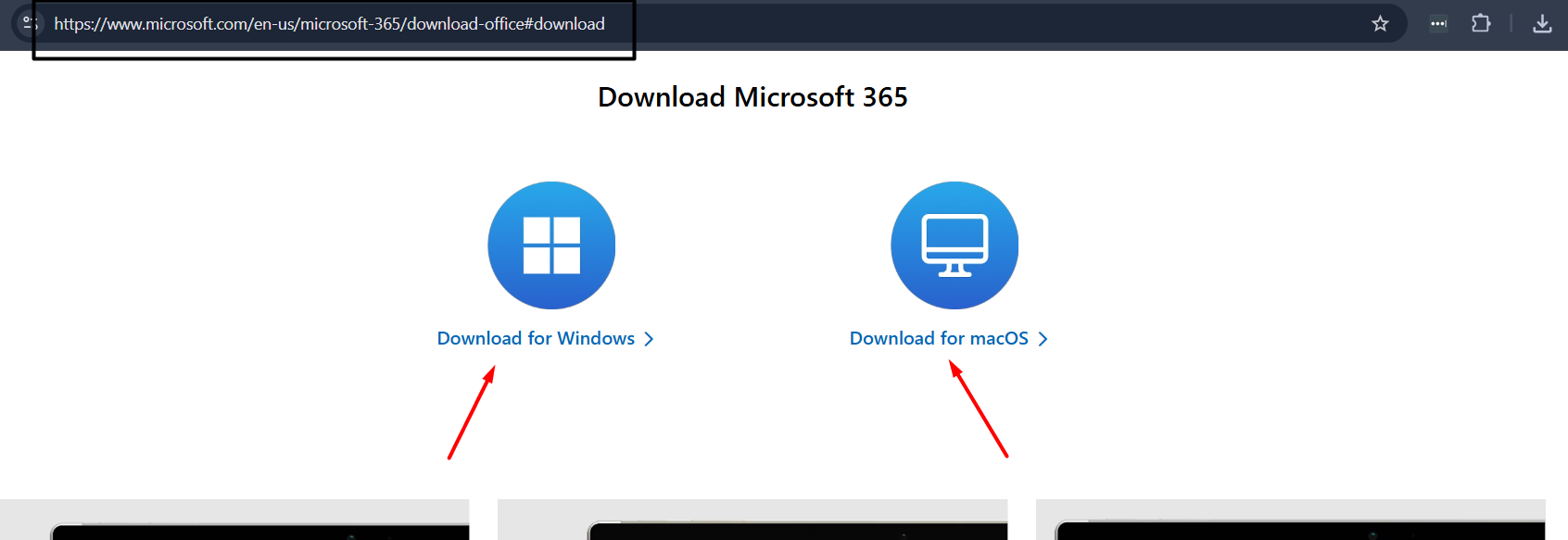
-
Save the installer file to your computer
-
Open the downloaded file
Step 5: Run the Installer
-
The installation will start automatically
-
Office will download and install required applications
-
Please wait until installation completes
Step 3: Allow Installation (If Prompted)
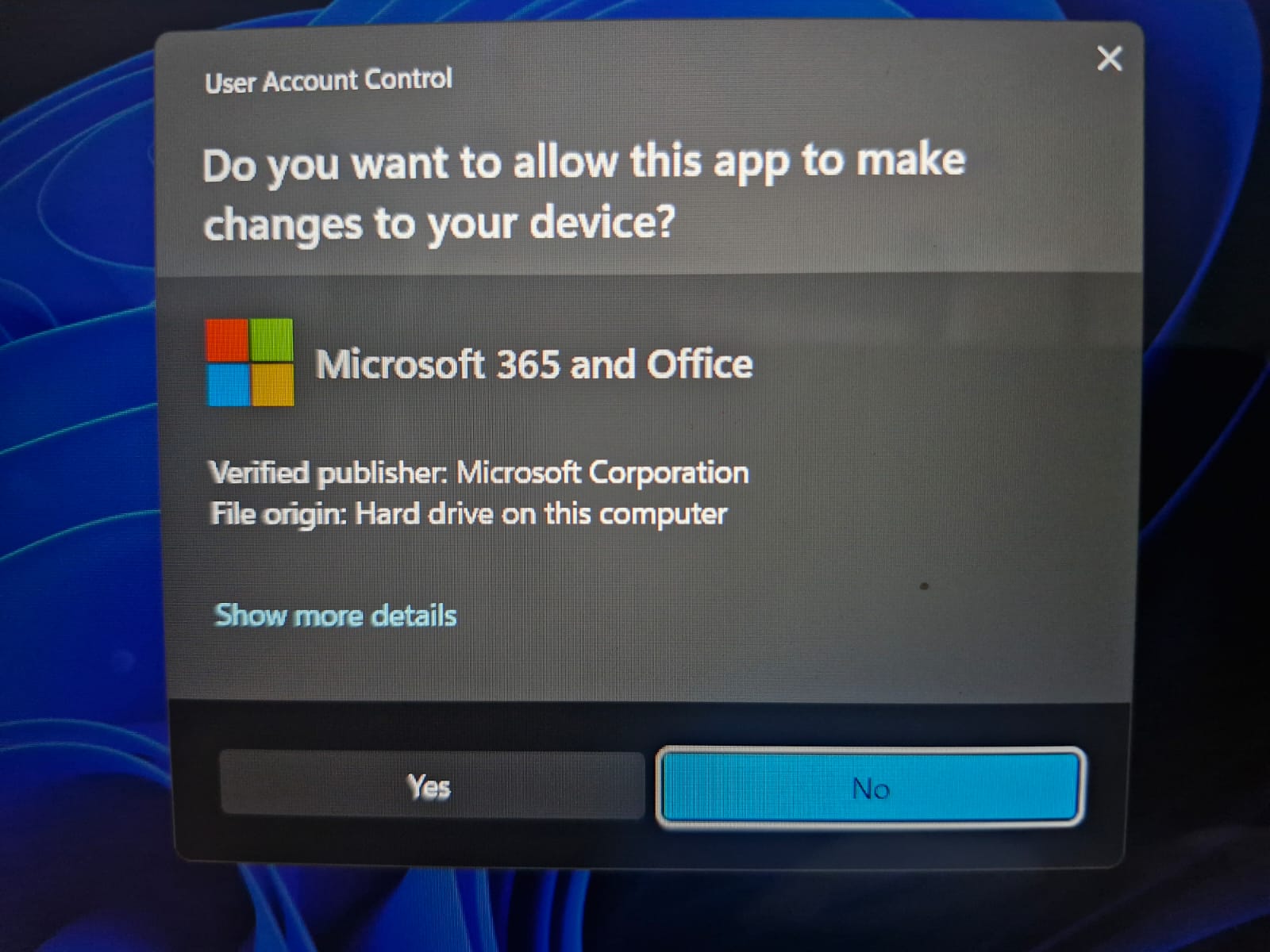
-
Click Yes when prompted
-
Installation will continue
Step 6: Installation Complete
Once installation is complete:
-
Microsoft Office apps will be available in the Start Menu
-
Open Word, Excel, or Outlook
-
Sign in using your Queensford College account
7. Support and Contact Information
Queensford College IT Helpdesk
Email: helpdesk@queensford.edu.au
Microsoft Office Download Portal:
https://www.microsoft.com/en-us/microsoft-365/download-office#download