Step 1: Go to Microsoft Office
Open your web browser and visit https://office.com
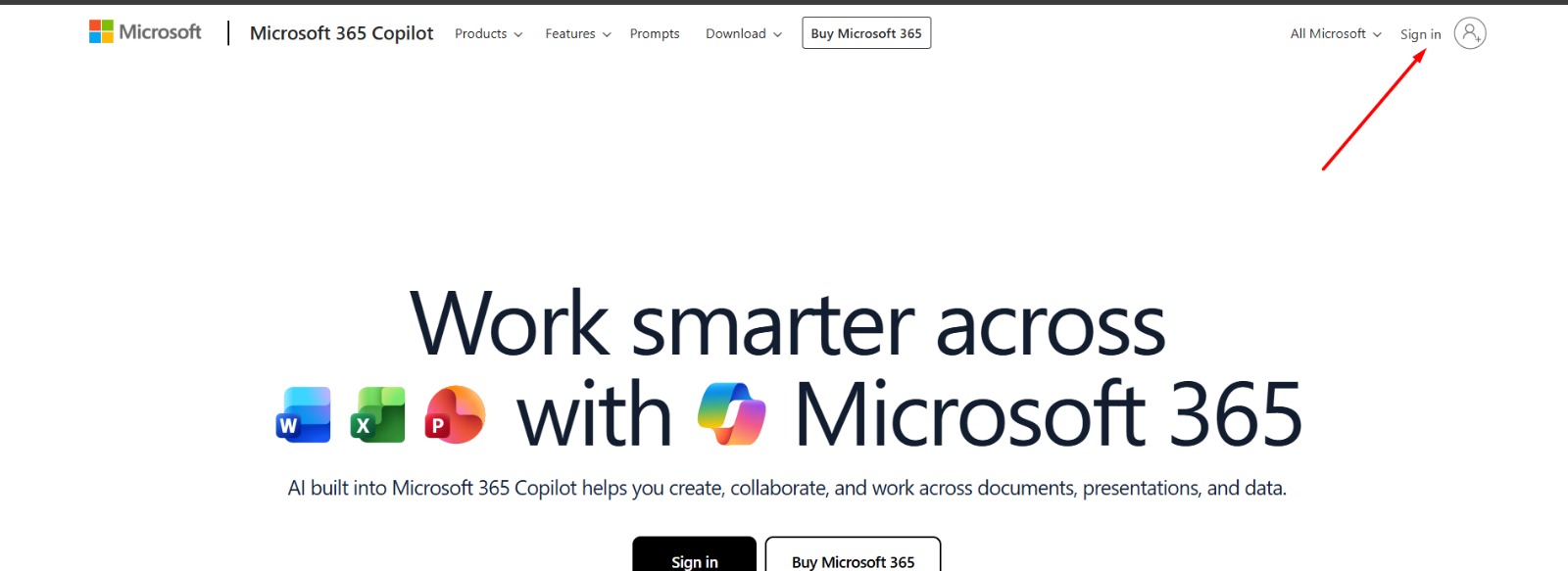
On the Microsoft 365 homepage, click Sign in (top-right corner).
Step 2: Enter Your Username
Note: Your login details have been provided in the "Welcome to Your Queensford College E-Learning Account" email. Please use the login details provided in that email to access Moodle.
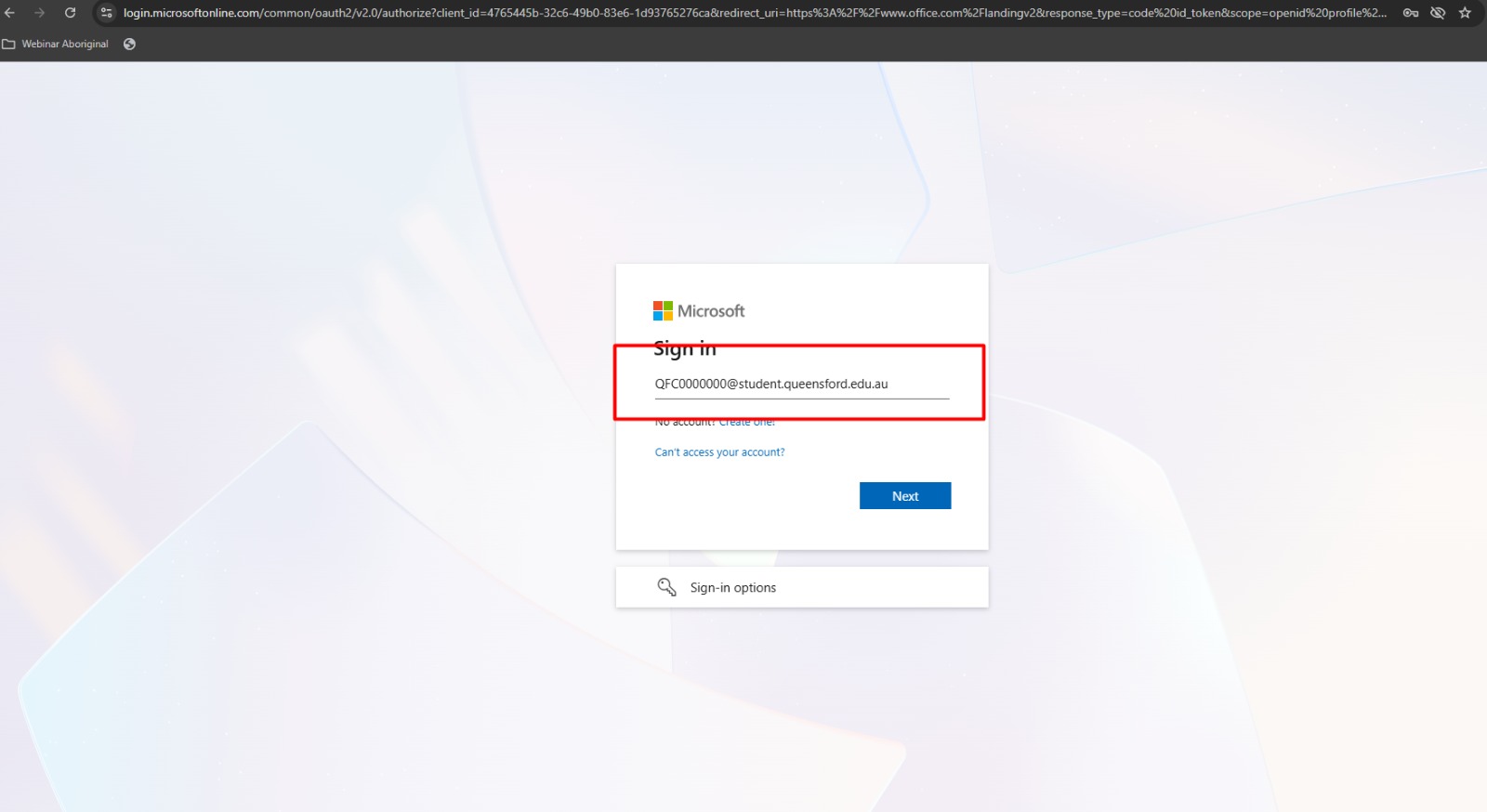
On the Microsoft Sign in screen, enter the username provided below, then click Next.
- Username:
_________________@student.queensford.edu.au
Step 3: Enter Temporary Password
Enter the temporary password provided below, then click Sign in.
- Temporary Password:
_________________
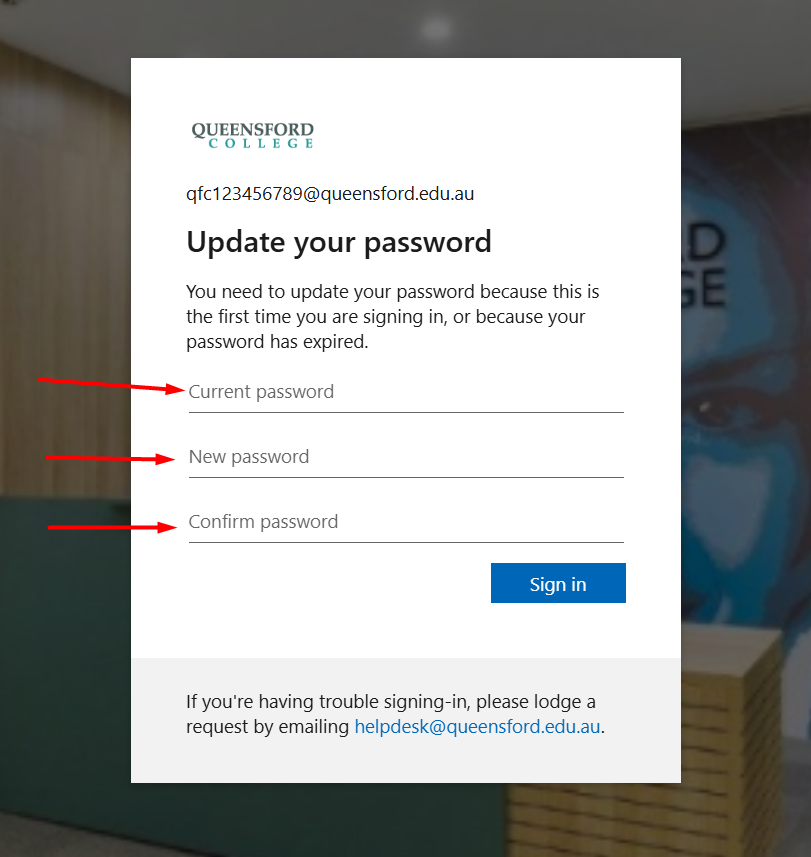
Step 4: Update Your Password
Because this is a temporary password, you'll be asked to set a new one.
- Enter the temporary password again in Current password
- Create and confirm your new password
- Click Next
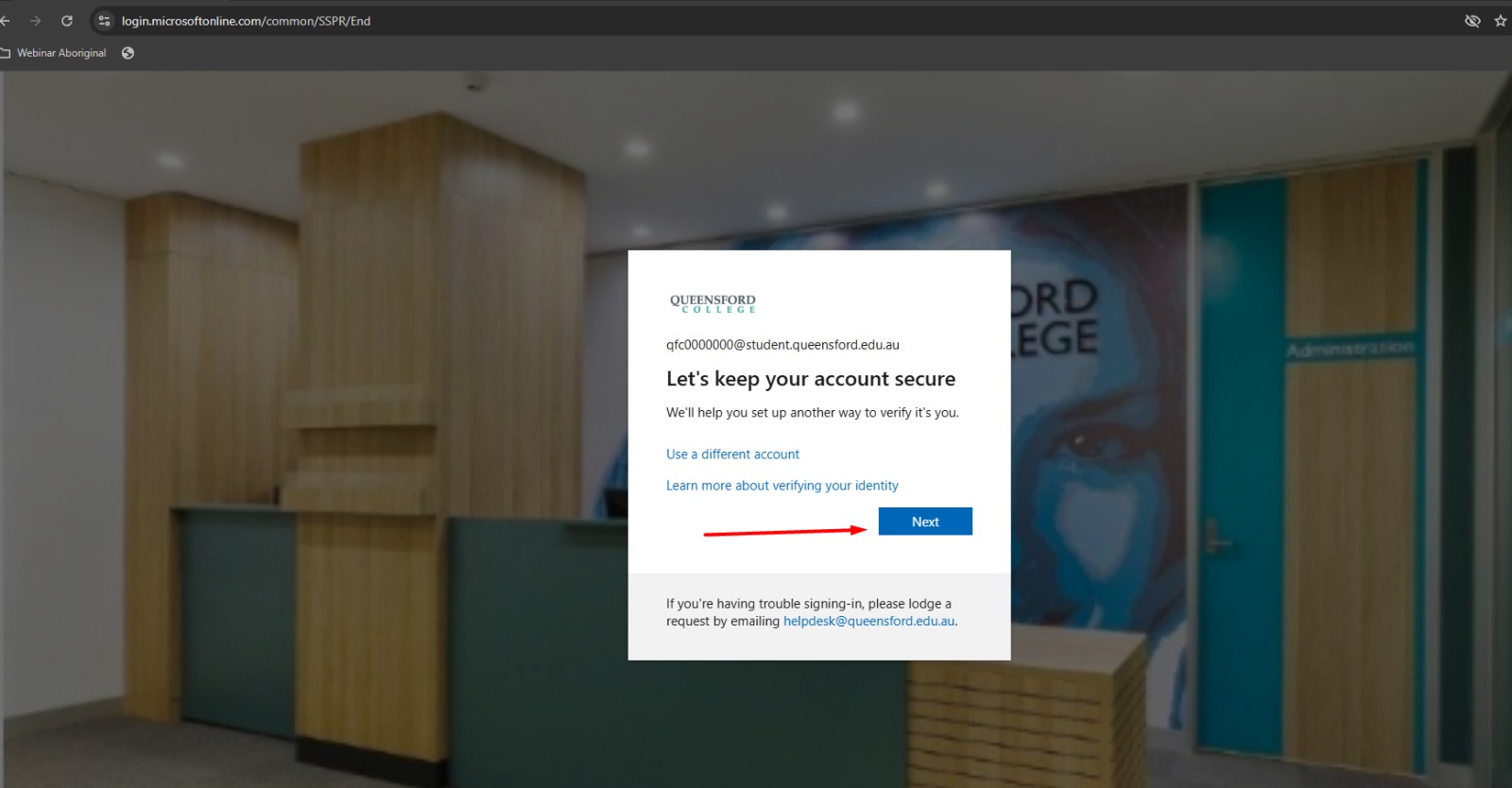
Step 5: Keep Your Account Secure
On the "Let's keep your account secure" page, click Next to continue setting up verification.
Step 6: Choose a Sign-In (Verification) Method
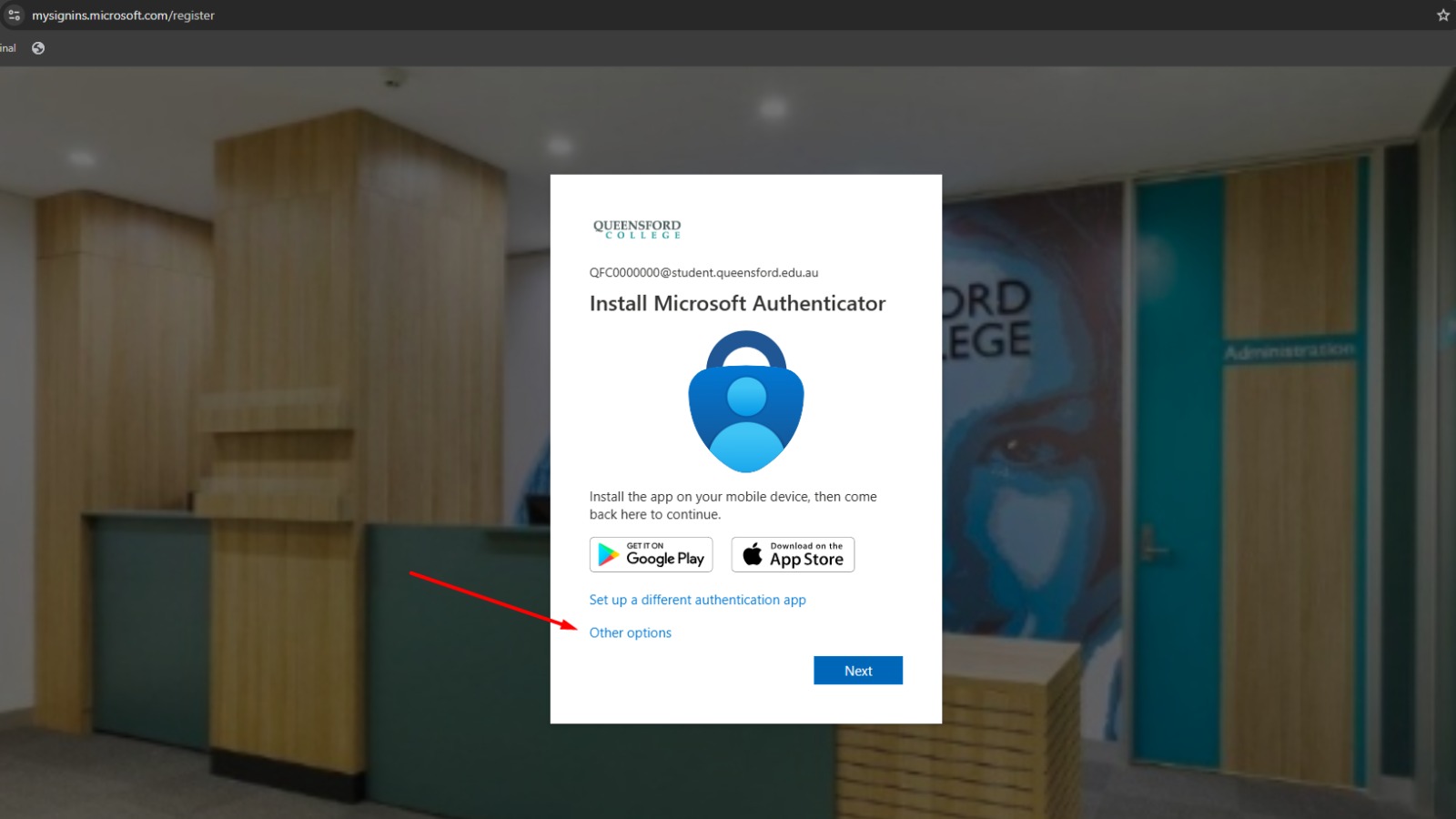
On the "Install Microsoft Authenticator" page:
- Click Other options (bottom of the box)
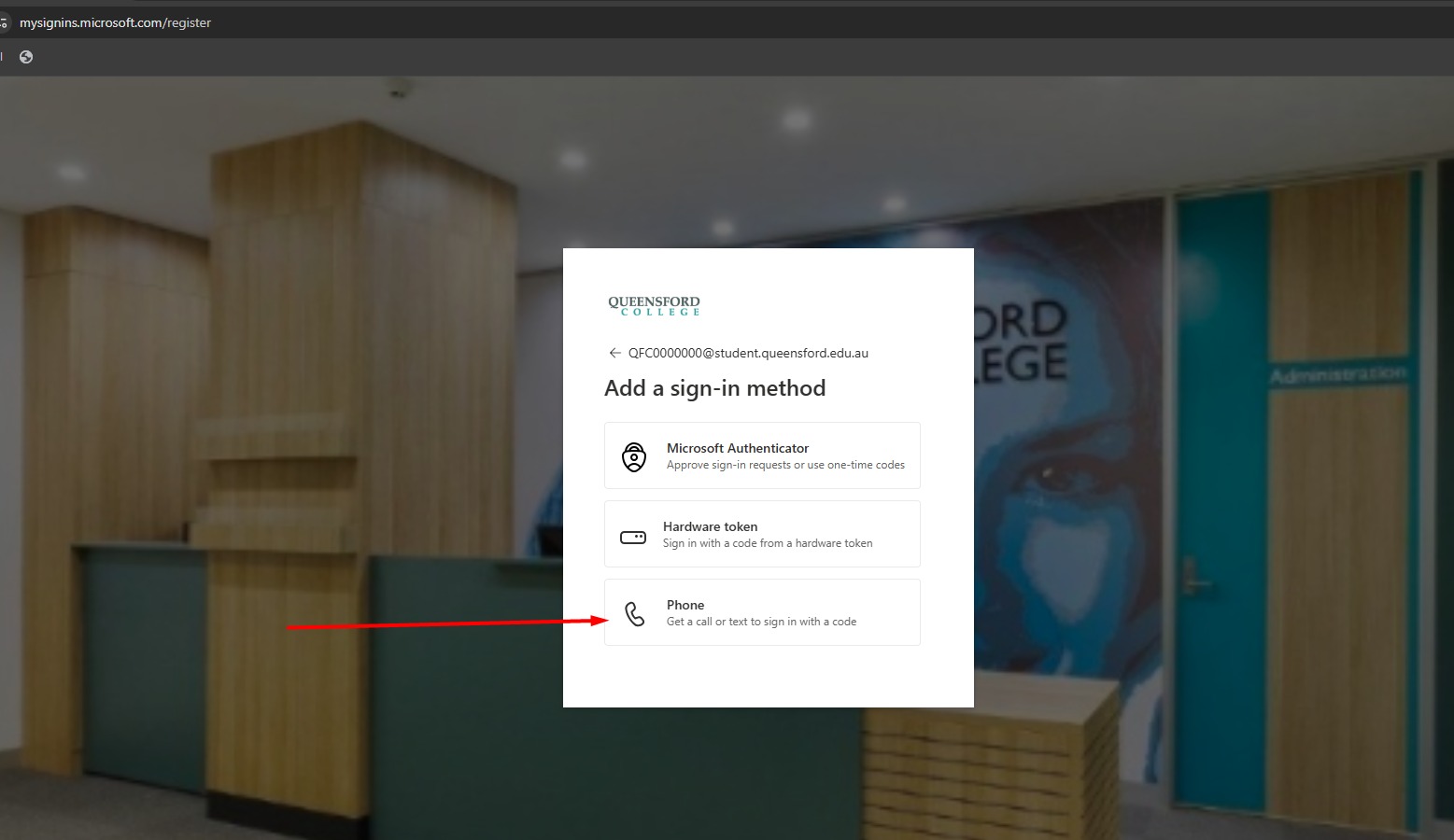
- From "Add a sign-in method", select your preferred method:
- Phone – get a call or text with a code (recommended / easiest)
- Microsoft Authenticator – approve sign-ins via the app
- Hardware token
Select Other Options
Select Phone
Step 7: Add Your Phone Number
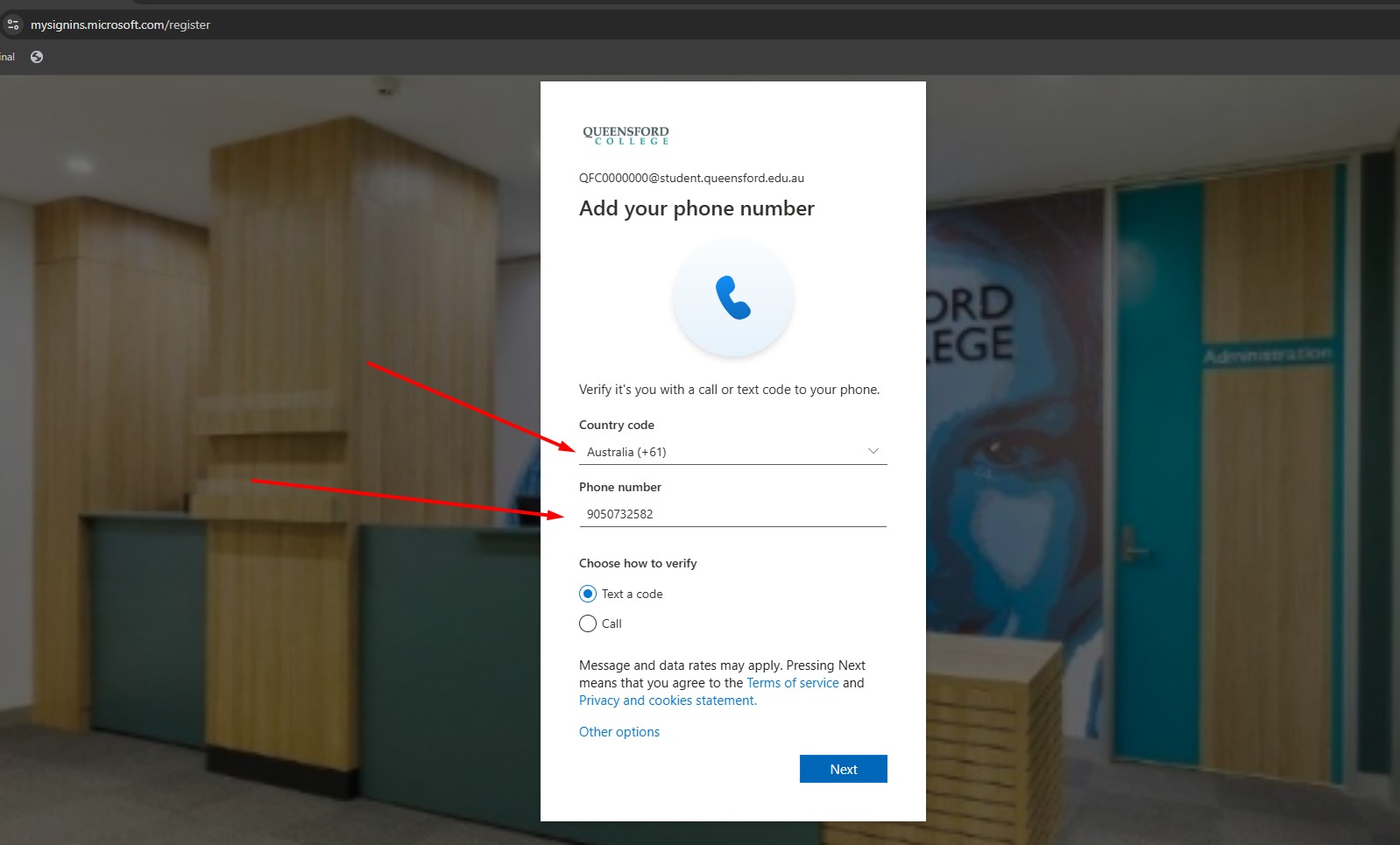
On the "Add your phone number" page:
- Select your Country code (e.g. India +91, Australia +61)
- Enter your mobile number
- Under Choose how to verify, select Text a code
- Click Next
Step 8: Verify Your Identity
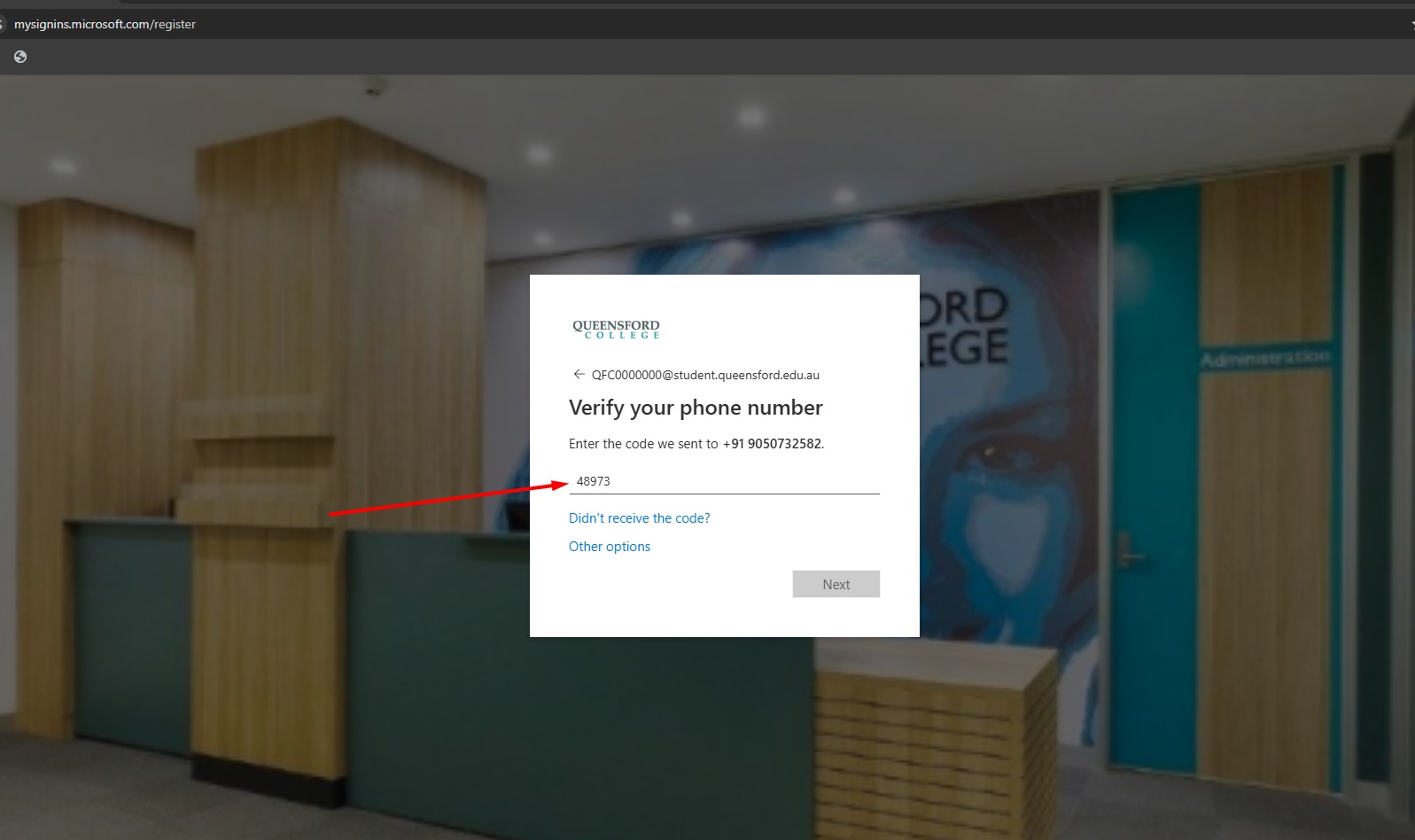
- You'll receive a verification code via SMS
- Enter the code on the "Verify your phone number" page
- Click Next
Step 9: Finish Setup
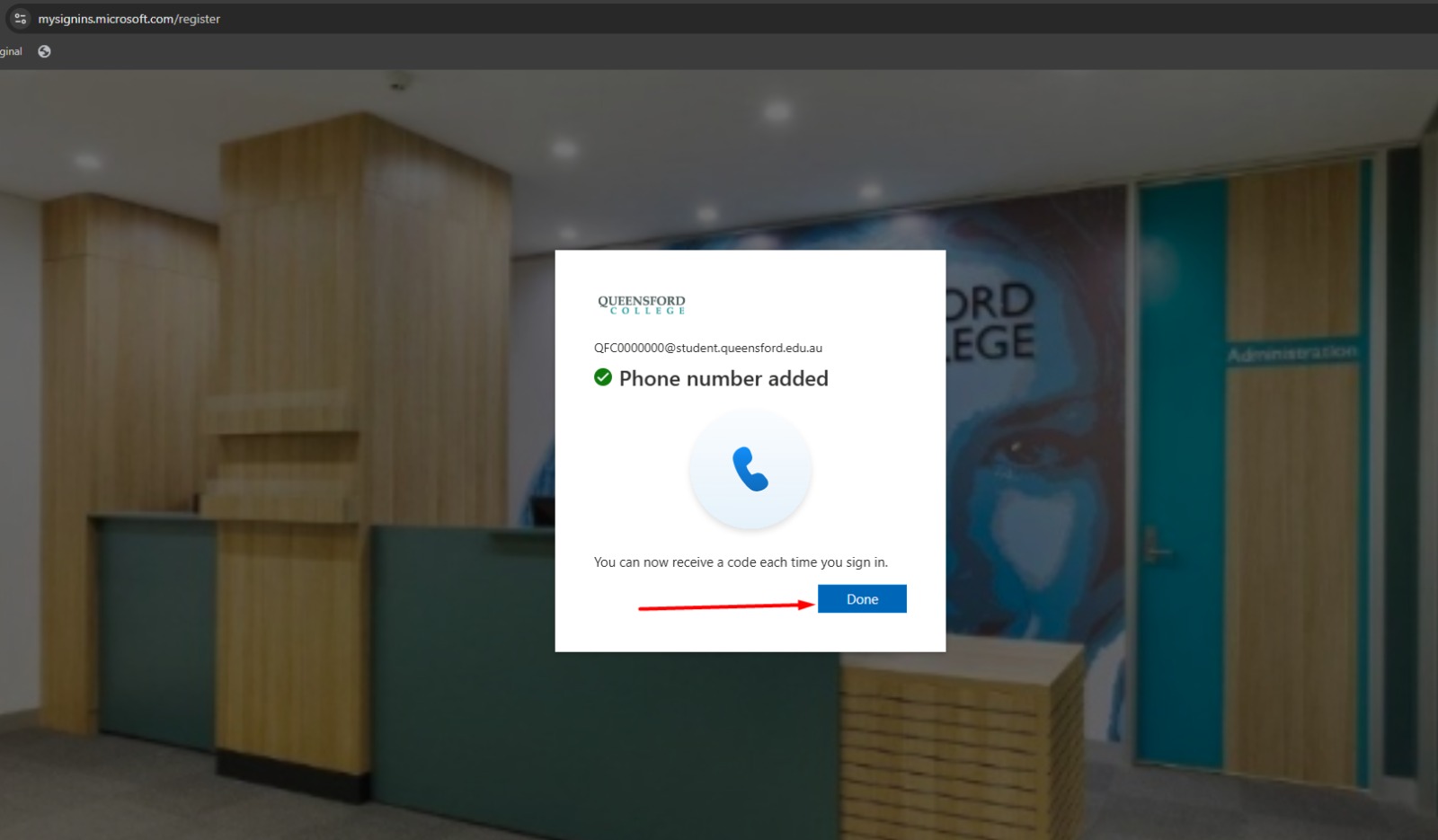
When you see "Phone number added", click Done.
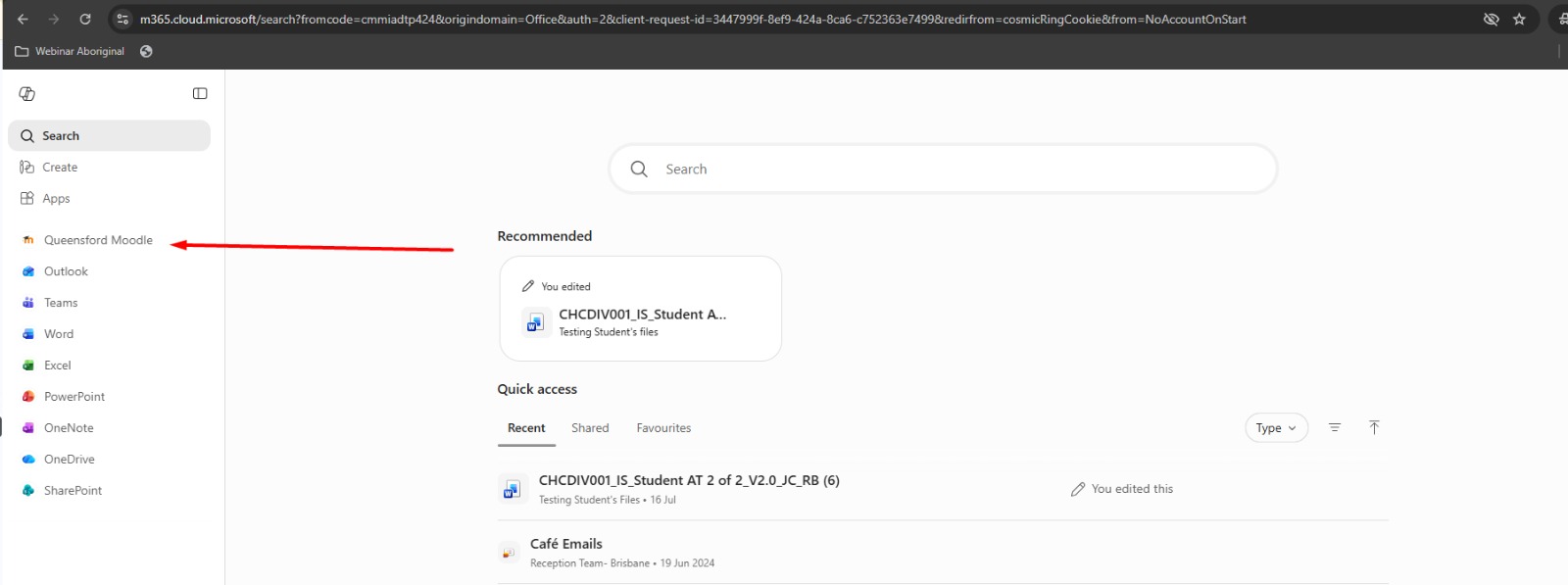
You'll be taken to the Microsoft 365 home page, with the navigation menu on the left-hand side.
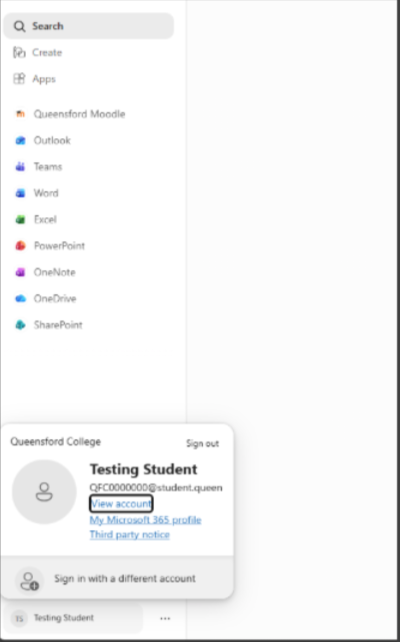
Step 10: Verify You Are Logged In to Your Queensford Account
Note: Please ensure that you are logged in to your Queensford account using the student number provided to you.

Step 11: Open Queensford Moodle
- From the left-hand navigation menu, click Queensford Moodle
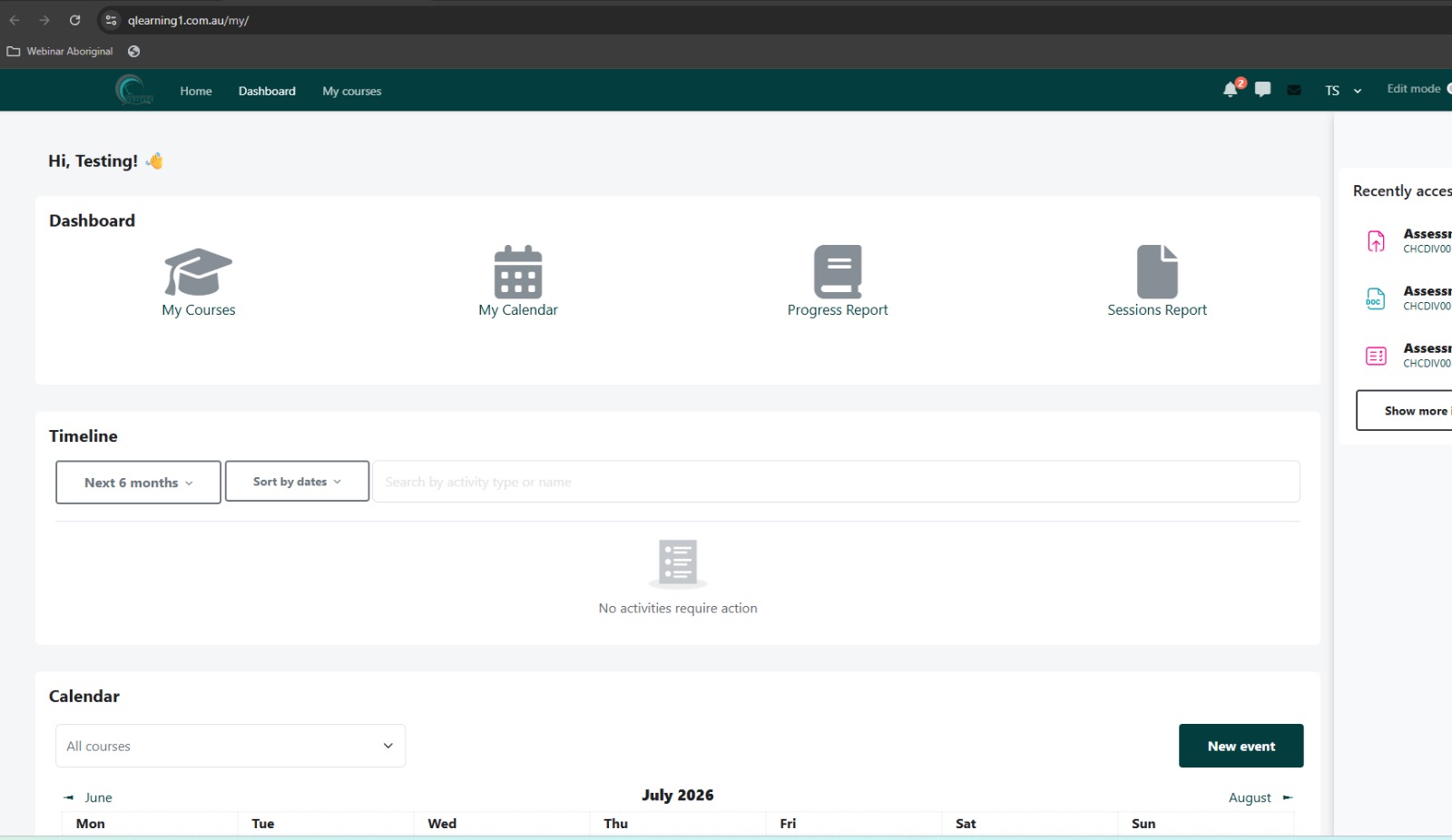
- Your Moodle Dashboard will open — you're now logged in.
Need Help?
If you're having trouble signing in, please lodge a request by emailing helpdesk@queensford.edu.au