This article provides step-by-step instructions for logging in to Microsoft Office 365 using your Queensford College email account. Office 365 provides access to essential services including Outlook email, Teams, OneDrive, Word, Excel, PowerPoint, and other Microsoft applications.
1. Login Procedure
Step 1: Open the Office 365 Login Page
-
Open a web browser.
-
Navigate to the official Microsoft Office 365 login page:
https://www.office.com/ -
Click Sign in
Step 2: Enter Your Queensford College Email Address
-
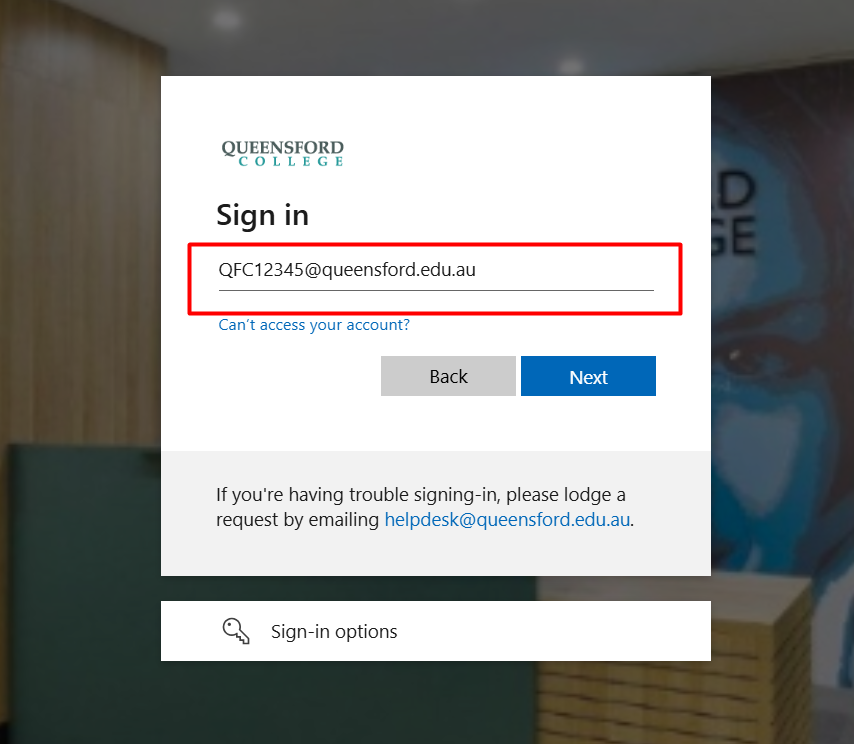
Enter your Queensford College email address
Example:QFC12345@queensford.edu.au -
Click Next
Step 3: Enter Your Password
-
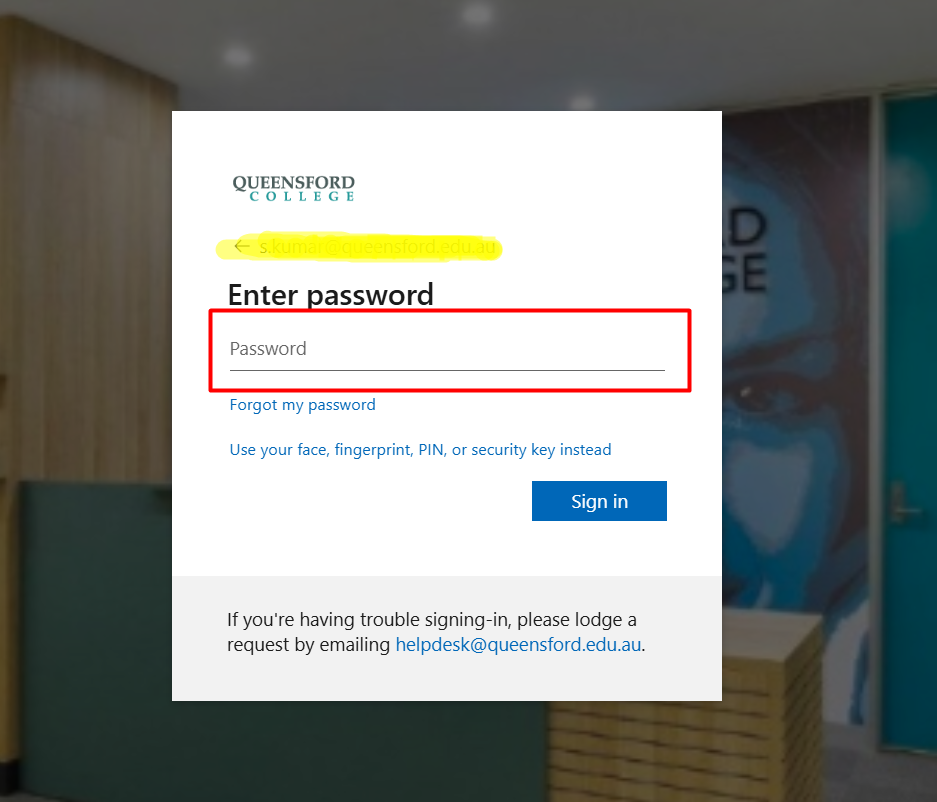
Enter your Microsoft 365 password
-
Click Sign in
Step 4: Complete Multi-Factor Authentication (If Prompted)
You may be asked to verify your identity using:
-
Microsoft Authenticator App
-
SMS verification code
-
Email verification
Follow the on-screen instructions.
Step 5: Access Office 365 Dashboard
After successful login, you will be redirected to the Office 365 Home page.
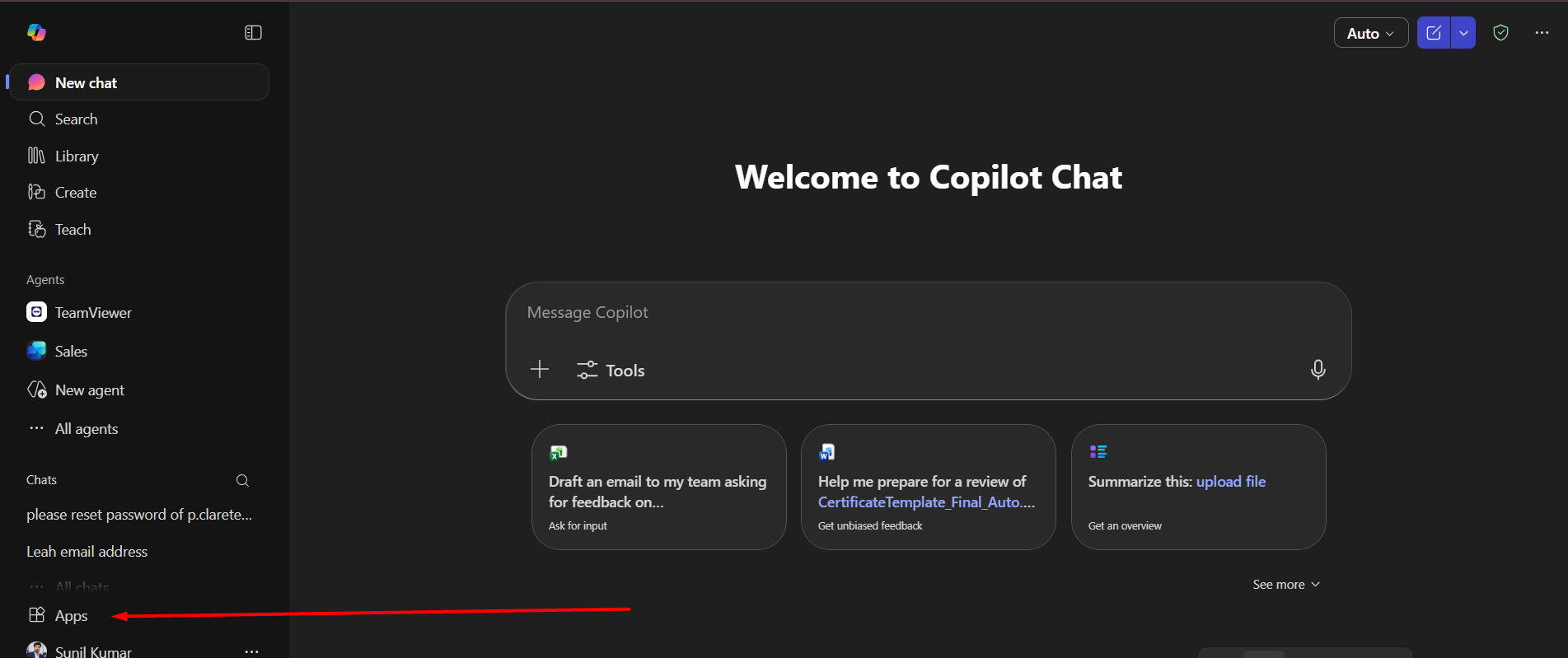
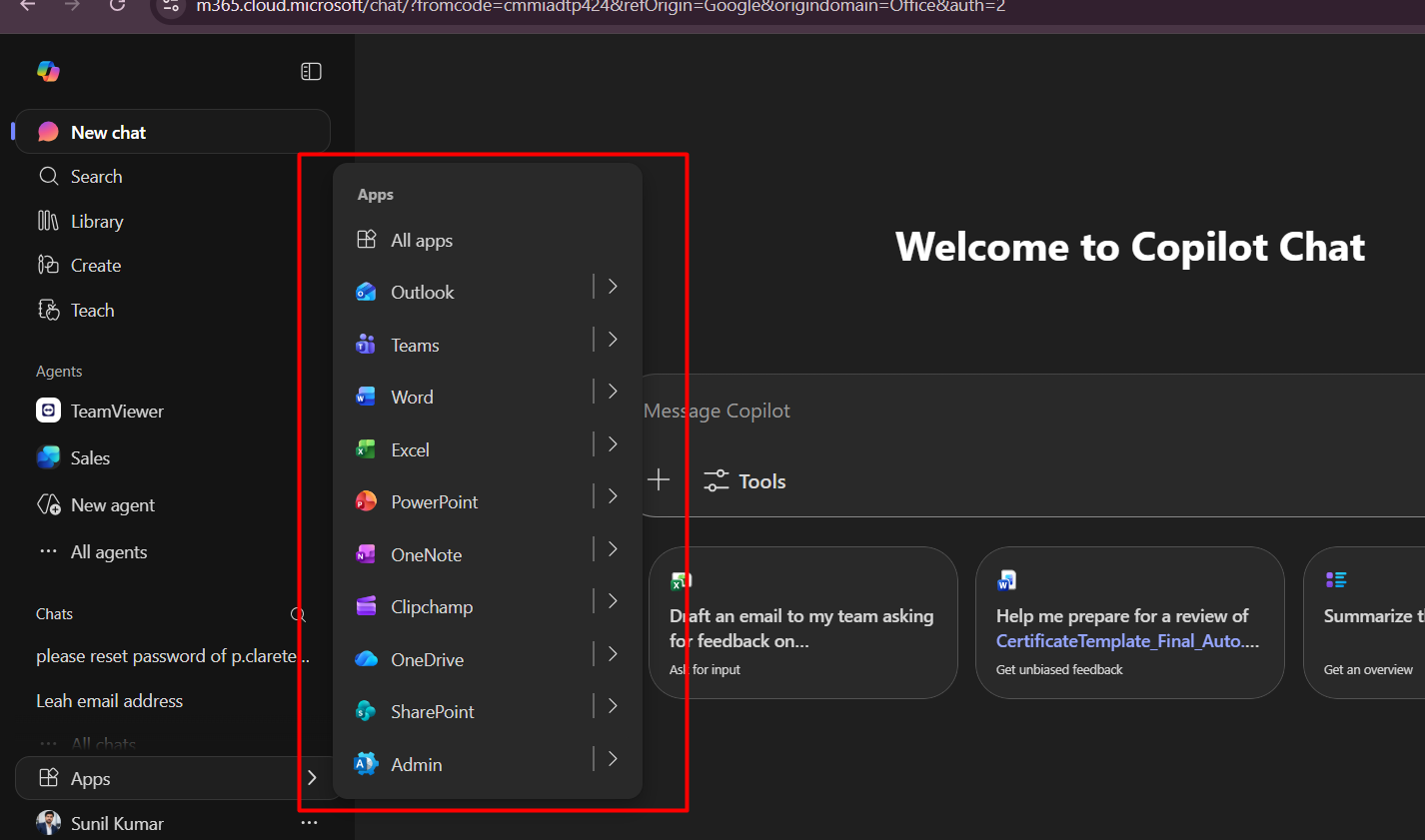
From here, you can access:
-
Outlook (Email)
-
Microsoft Teams
-
OneDrive
-
Word
-
Excel
-
PowerPoint
-
SharePoint
-
Other Microsoft applications
5. Expected Outcome
You will successfully access your Office 365 dashboard and be able to use Queensford College email and Microsoft applications.