Providing a quiz attempt in Moodle means allowing a student to take a quiz again or granting an extra attempt beyond the attempts initially set in the quiz settings.
This is often done in cases such as:
· A student missed an attempt due to illness or technical issues.
· A student needs another opportunity to improve their score.
· Administrative exceptions require additional attempts.
Key Points
- Trainers can grant extra quiz attempts using the Quiz Override feature.
- Extra attempts can be given to individual students (User Override) or groups of students (Group Override).
- The granted attempt respects the quiz settings, but trainers can adjust:
1. Time limits
2. Open/close dates
3. Number of attempts
- All changes are tracked in Moodle’s audit history.
Note: Before following the guidelines to override an assessment in Moodle, ensure that you have access to the student or the student’s group/intake you wish to override. If you do not have access, please contact the IT Helpdesk team for assistance.
Note: There are two ways to override a student’s assessments in Moodle:
- From the Progress Report – Allows you to override assessments by viewing a student’s overall course progress and granting extra attempts or adjusting deadlines from the report view.
- Directly from the Unit/Activity – Allows you to override assessments directly from the quiz or assignment activity, applying changes to individual students or groups.
Both methods achieve the same result but provide flexibility depending on whether you are managing one student, a group, or reviewing overall progress.
Stepwise Guidelines: Providing a quiz attempt in Moodle (For Trainers)
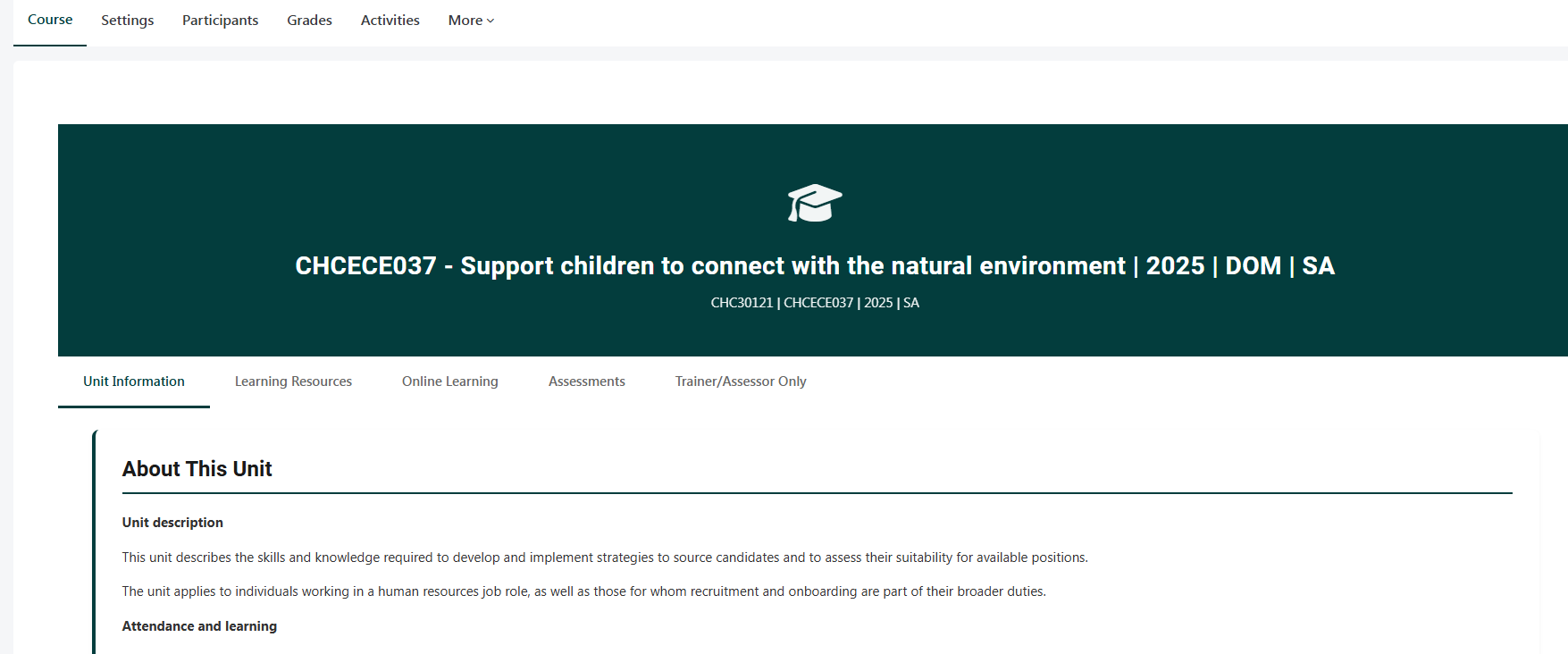
Step 1: Select the unit for which you want to override the student’s assessments
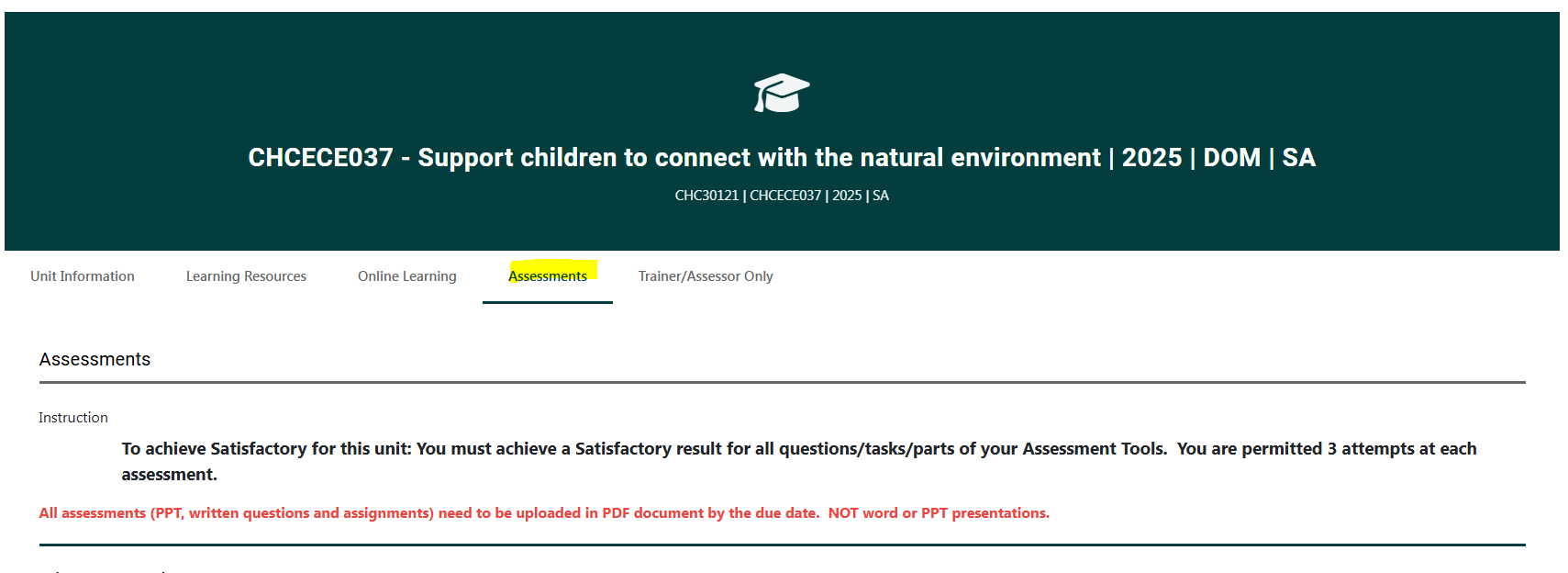
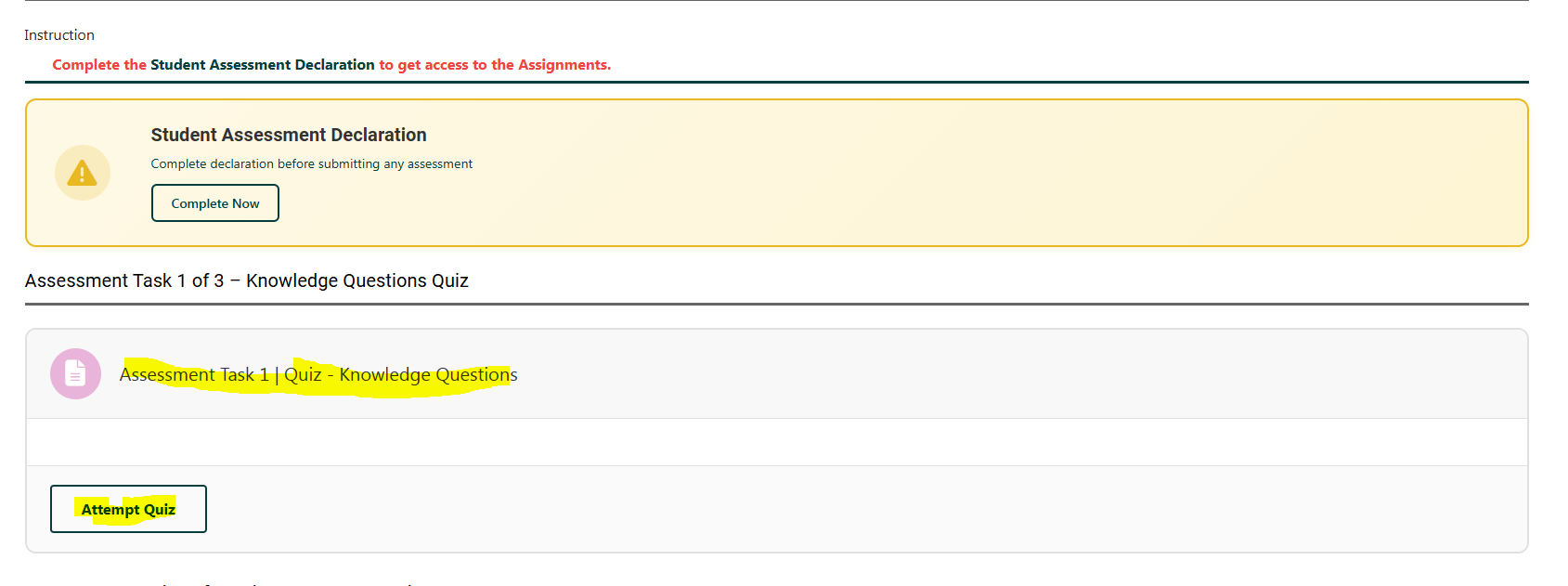
Step 2: Go to the Assessment tab and select the Quiz task you want to override
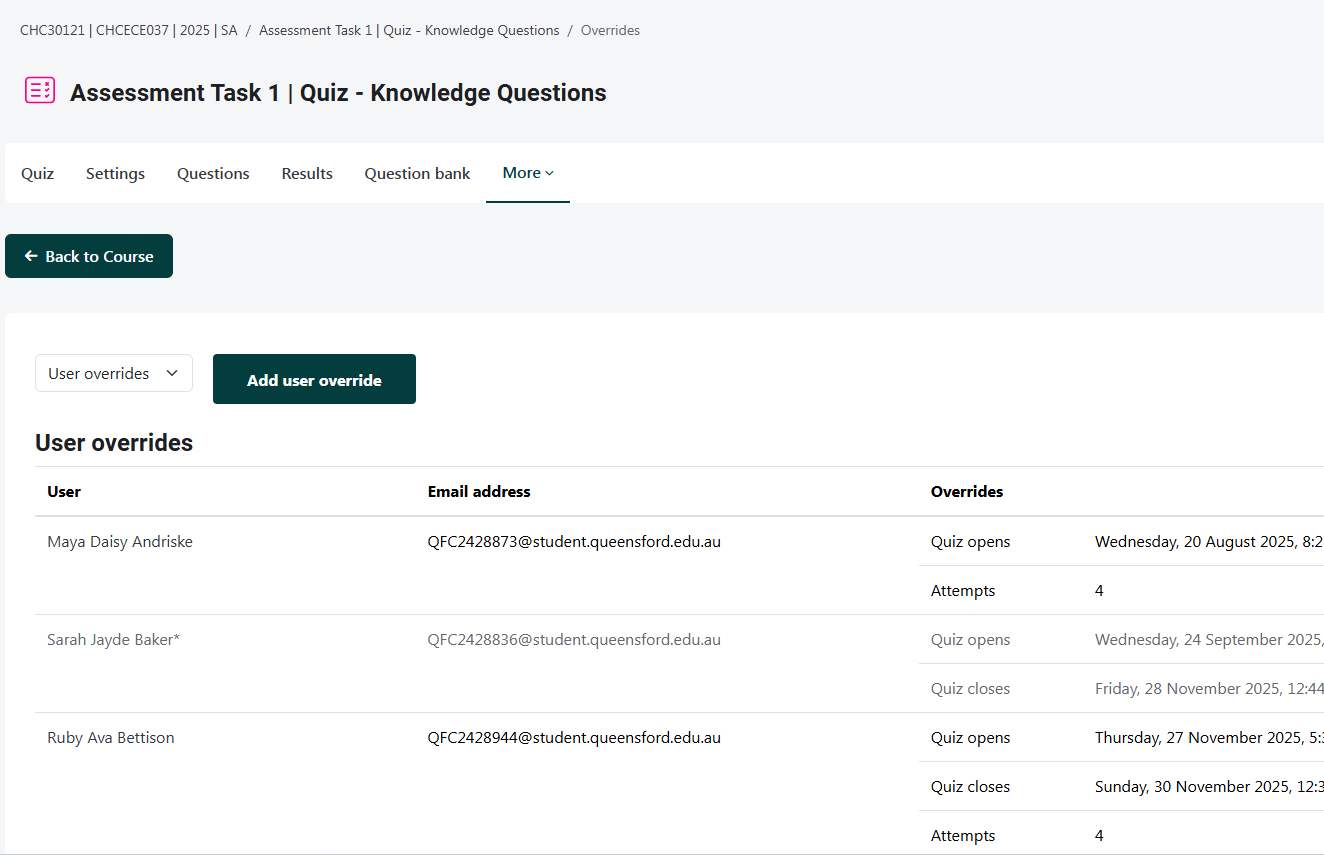
Step 3: The Quiz Attempt Report page will appear. Please click on the ‘More’ button and then select the ‘Overrides’ section.
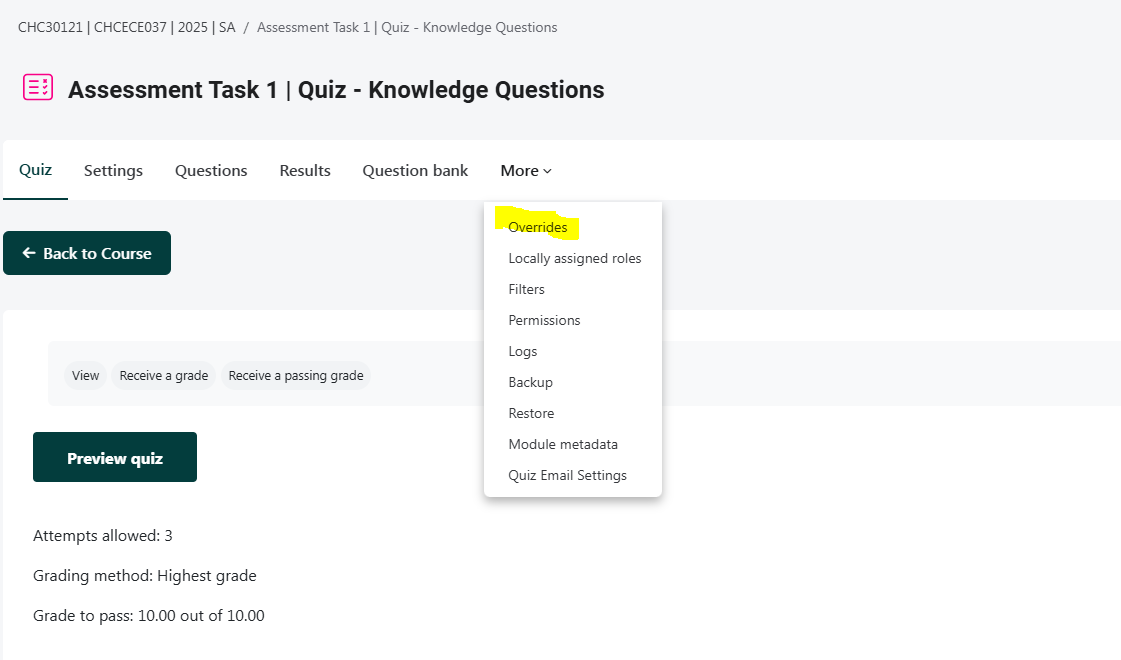
This is the Quiz Override page, where you can add or update a student’s Quiz due date.
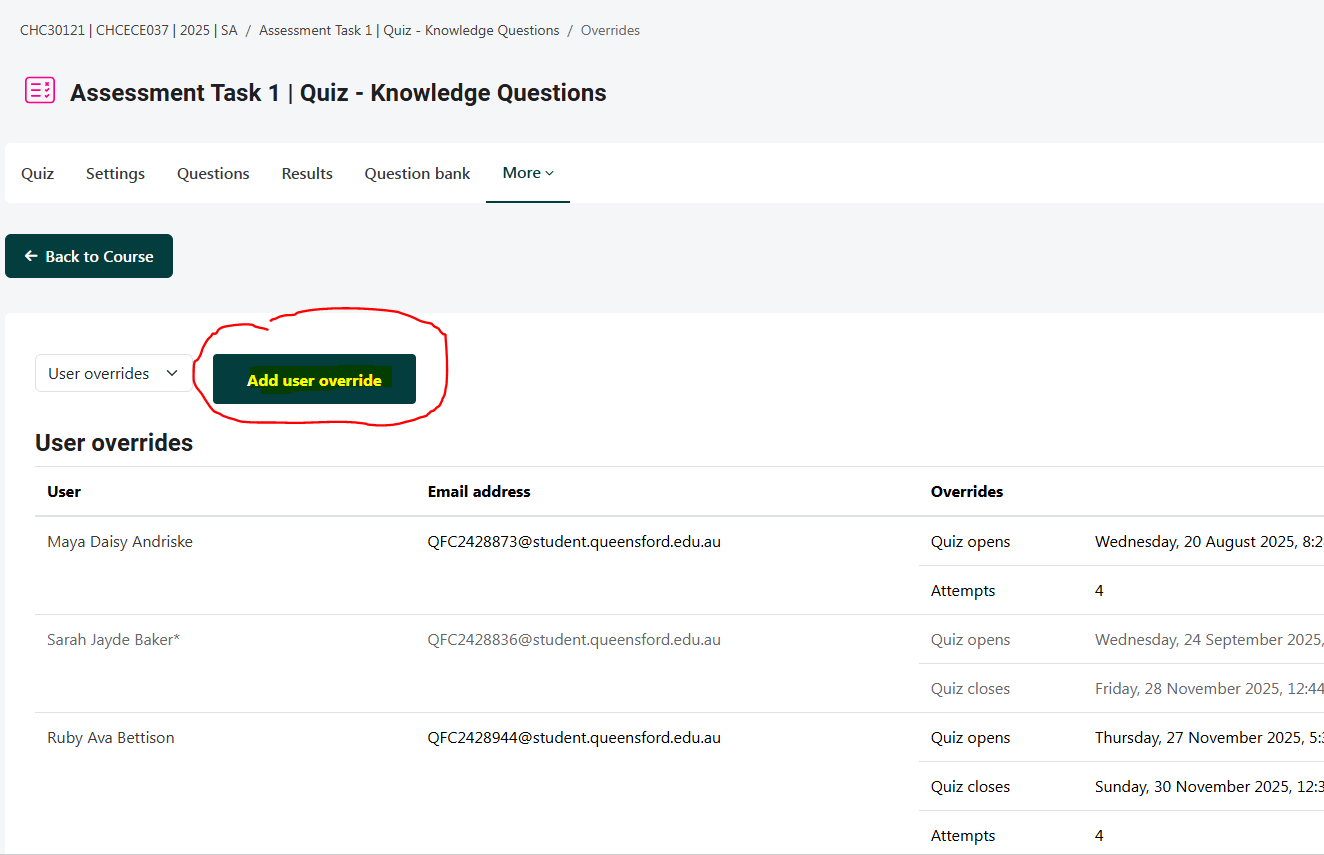
Step 4: Click the User Override button to override the student’s Quiz due date
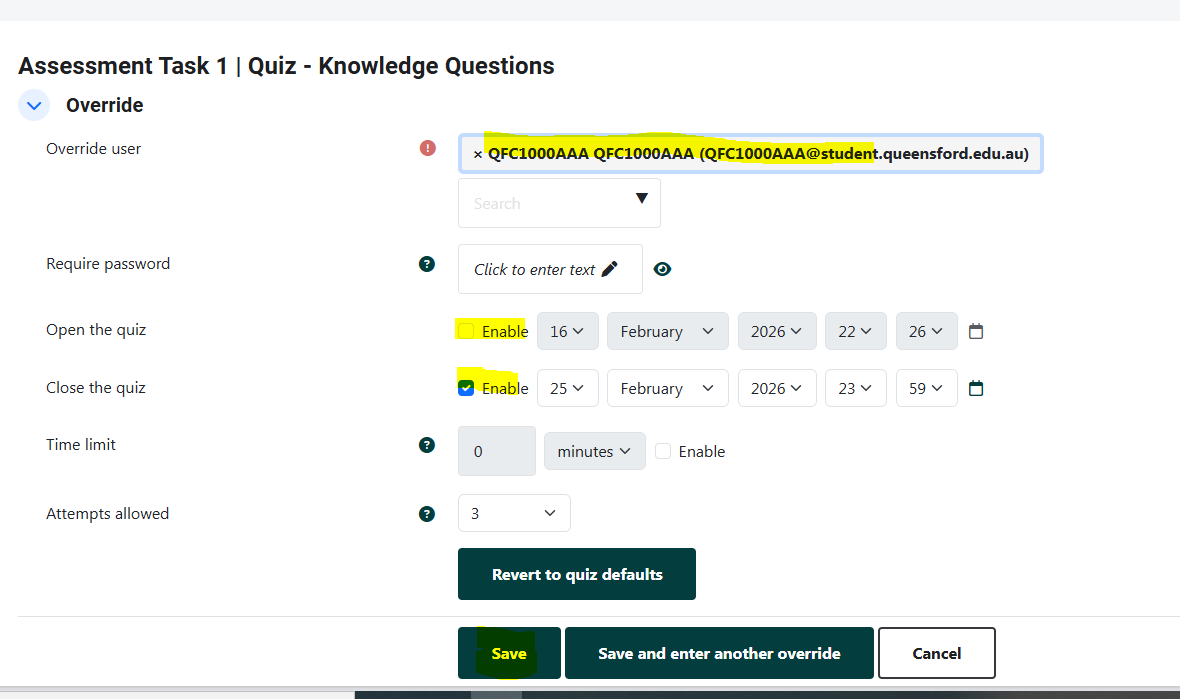
Step 5: Add the student details in Override user button.
Step 6: Enable open/close date button and set the due date as required.
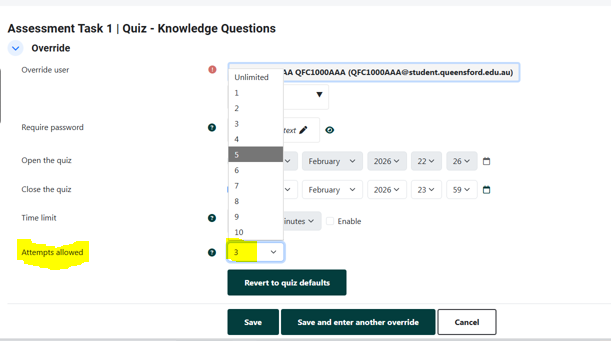
If you want to provide an extra attempt, click the ‘Attempts allowed’ dropdown menu and select the required number of attempts.
Step 7: Click on Save Button
After clicking the Save button, the overridden quiz due date is saved, and the due date is updated for the selected student.
