Introduction
Moodle provides a structured and secure platform for students to submit their assessments online. The assessment submission feature allows students to upload completed tasks, participate in quizzes, and submit responses directly through the Learning Management System (LMS). This ensures a streamlined process for both students and trainers while maintaining accurate academic records.
What is Assessment Submission in Moodle?
Assessment submission in Moodle refers to the process where students submit their completed assessment tasks through an assignment or activity created by the trainer. Once submitted, the assessment becomes available for grading and feedback.
Before You Submit
Before submitting your assessment, please ensure that:
-
You have read the assessment instructions carefully.
-
Your file is saved in the correct format (e.g., PDF, Word, Excel).
-
Your full name and student ID are included in the document (if required).
-
You have checked the due date and submission deadline.
-
Your file opens correctly on your device.
Steps to Submit a Assessment in Moodle
Here are the steps students need to follow before attempting any quiz or submitting an assessment in Moodle:
Step 1: Access the Assessment Page
-
From the top navigation bar, select Assessment.
-
You will be redirected to the Assessment page.

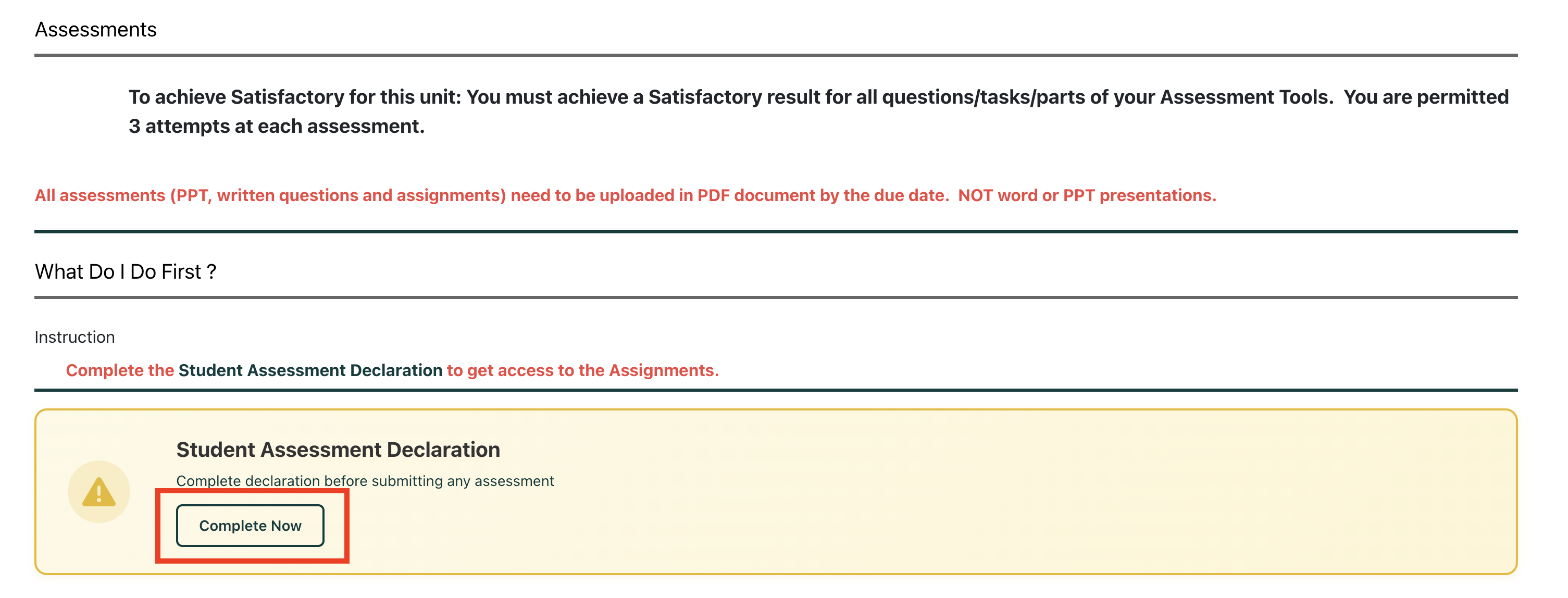
Step 2: Complete the Student Declaration (Required First Step)
Before you can start your assessment, you must complete the Student Declaration.
-
Click “Complete Now.”
-
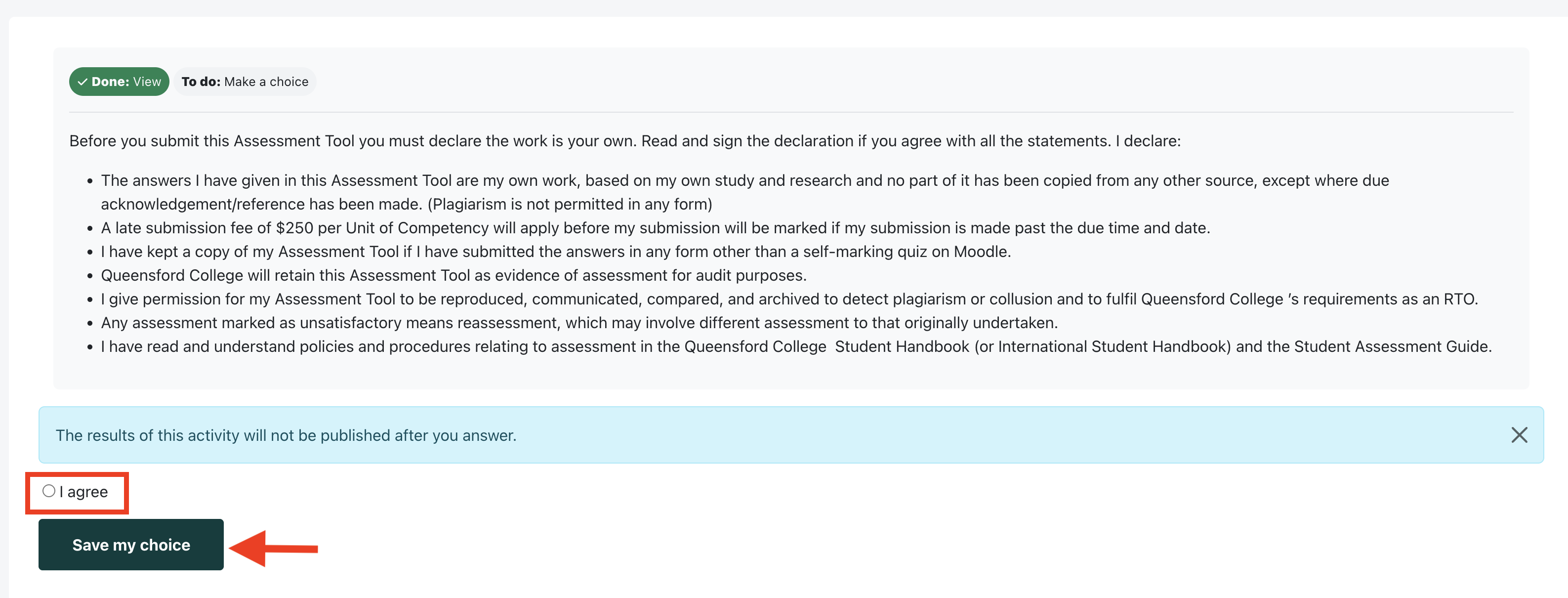
A new window will appear.
-
Select “I Agree.”
-
Click "Save my choice" to proceed.
Once the Student Declaration is completed, you will be able to access your assessment.
⚠ Important Notes:
-
International students may need to complete required modules (e.g., Online Learning – Week 1) before accessing the Student Declaration and assessments.
-
Domestic students do not have this restriction.
Types of Assessments
There are two types of assessments:
-
Online Quiz
-
File Upload Submission
📝 Part 1: Online Quiz
Follow these steps to attempt your quiz:
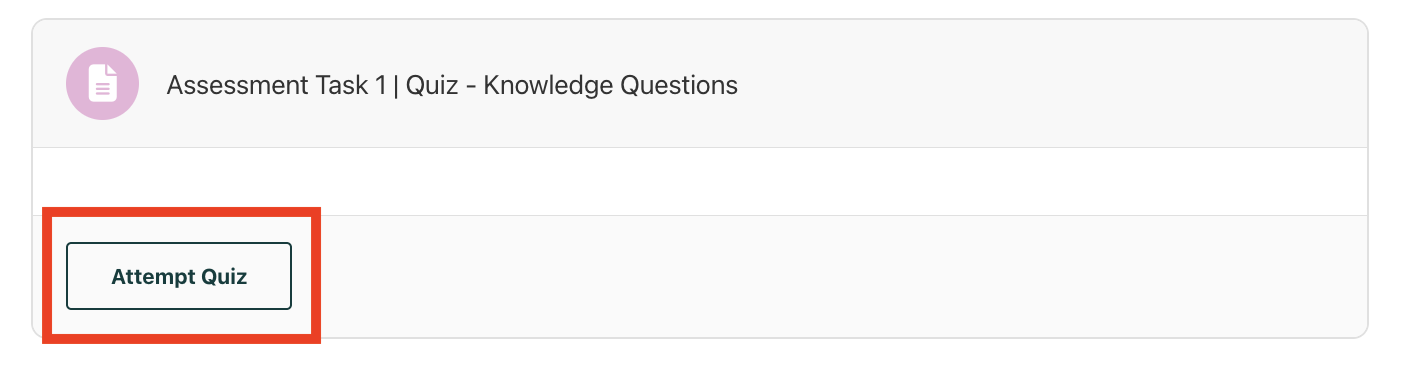
Step 1: Start the Quiz
-
Click “Attempt Quiz.”
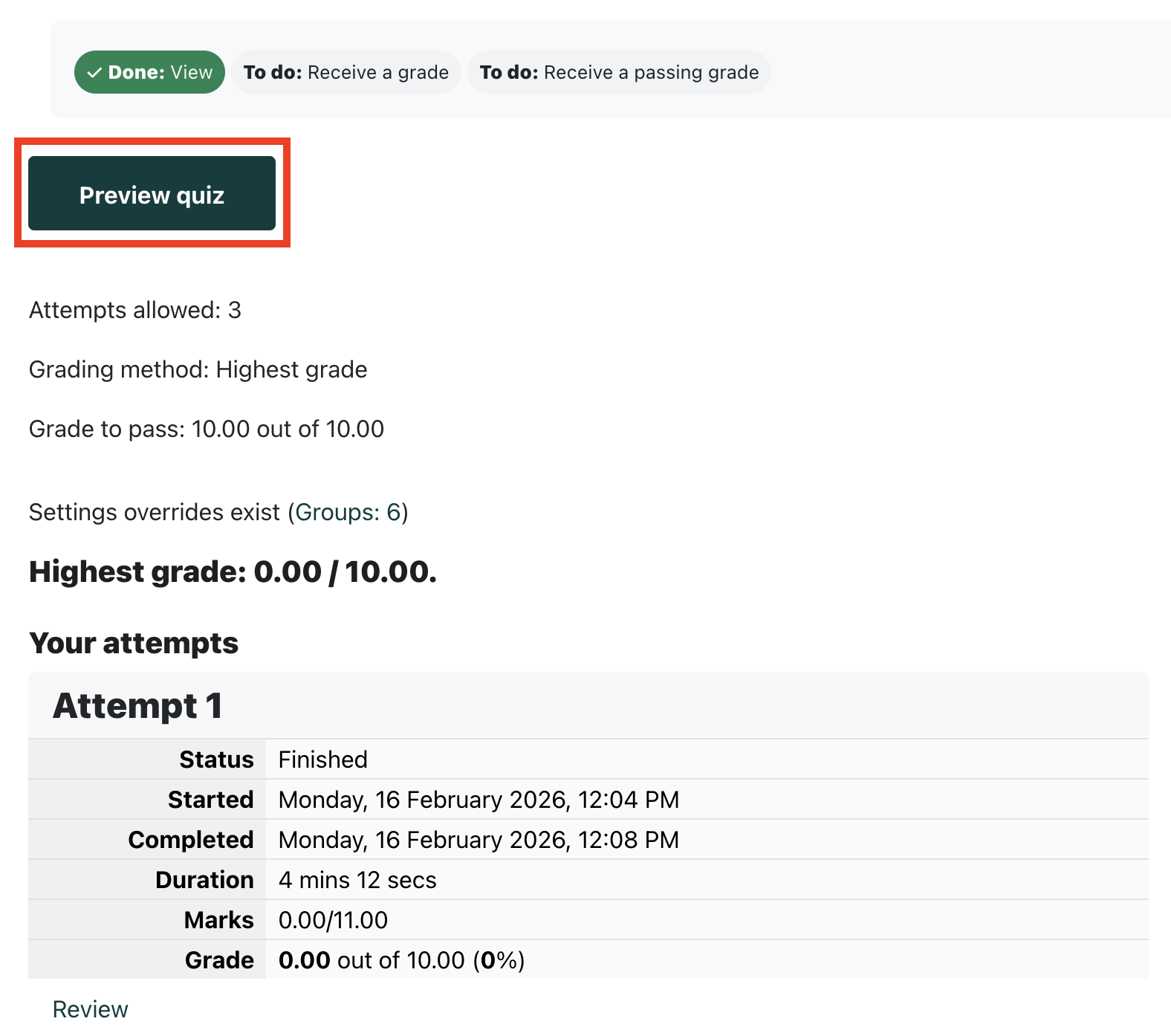
-
Select “Preview Quiz.”
-
A new window will open containing the quiz questions.
Step 2: Complete the Quiz
-
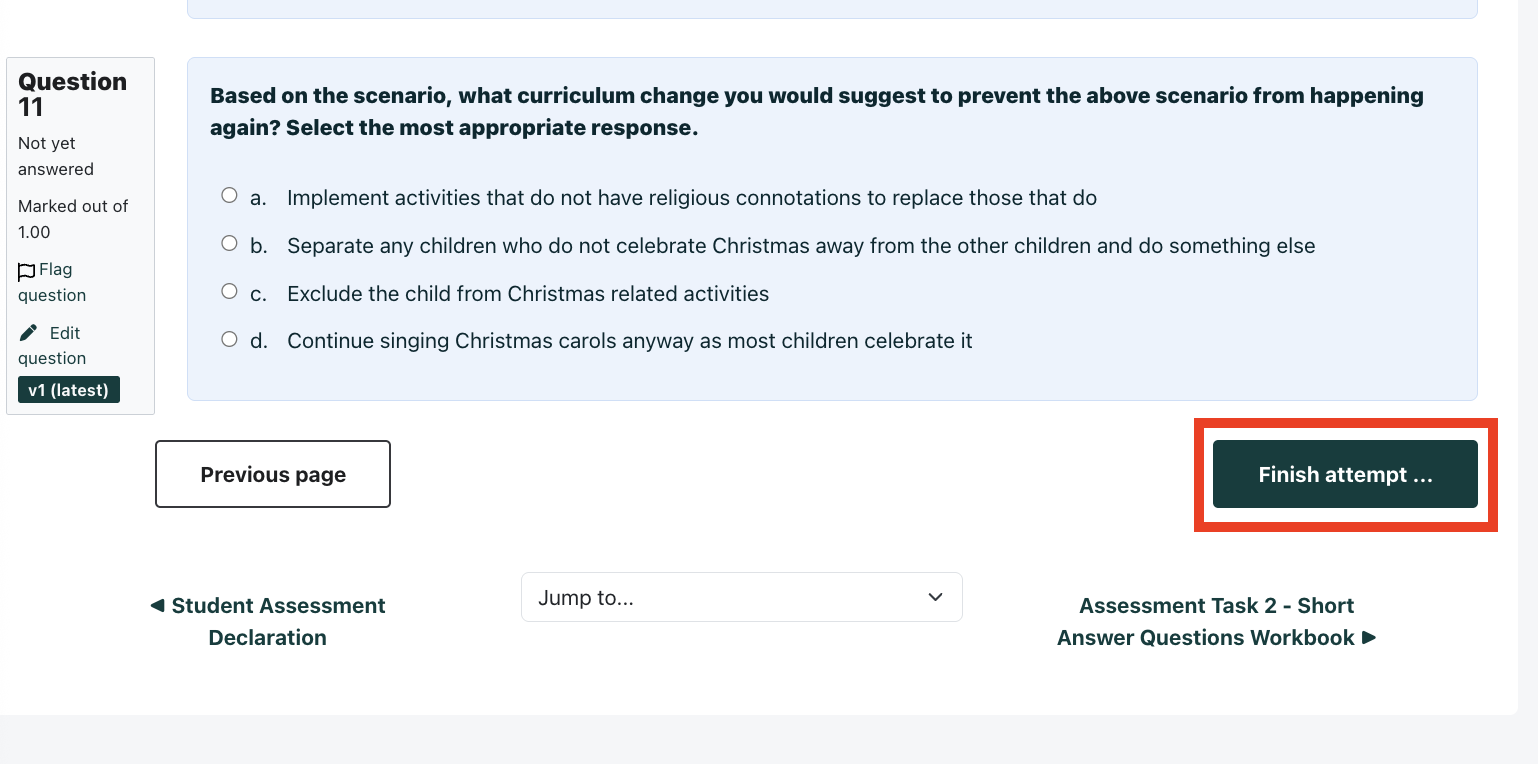
Answer all the questions.
-
When finished, click “Finish Attempt.”
Step 3: Review or Submit
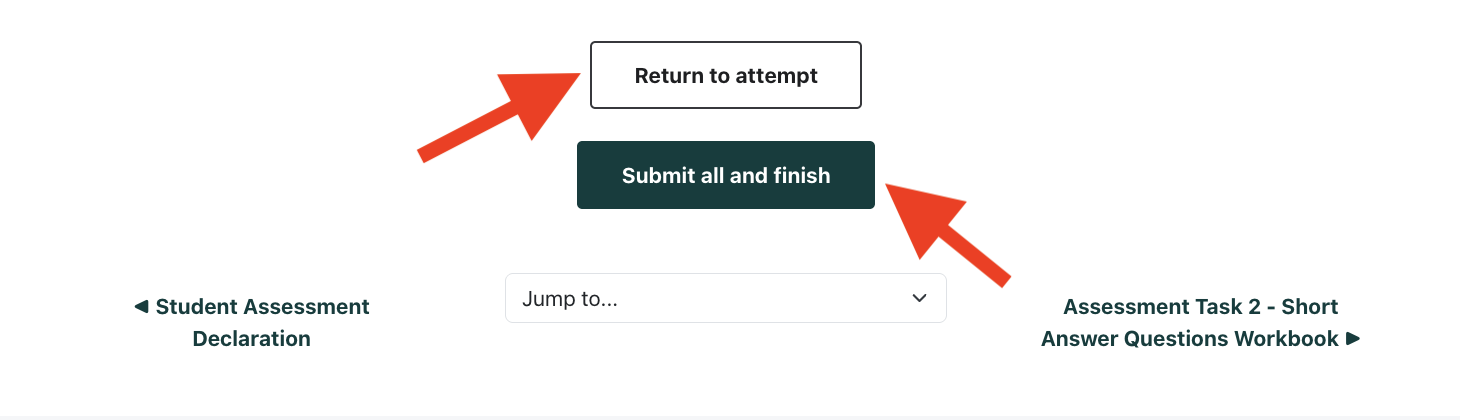
At this stage, you have two options:
-
Click “Return to Attempt” if you want to change your answers.
-
Click “Submit All and Finish” if you are ready to submit.
🔎 Quiz Information
-
You are allowed 3 attempts.
-
After submission, a results page will appear showing:
-
Status (Started / Completed)
-
Duration
-
Marks
-
Grade
-
-
If multiple attempts are allowed, the highest grade out of the three attempts will be recorded as your final mark.
Once you have completed the quiz, you can move on to the File Upload Submission.

📂 Part 2: File Upload Submission
This type of assessment may include:
-
Short Answer Questions
-
Practical Projects
-
Reports
-
Other written tasks
Step 1: Download the Assignment File
-
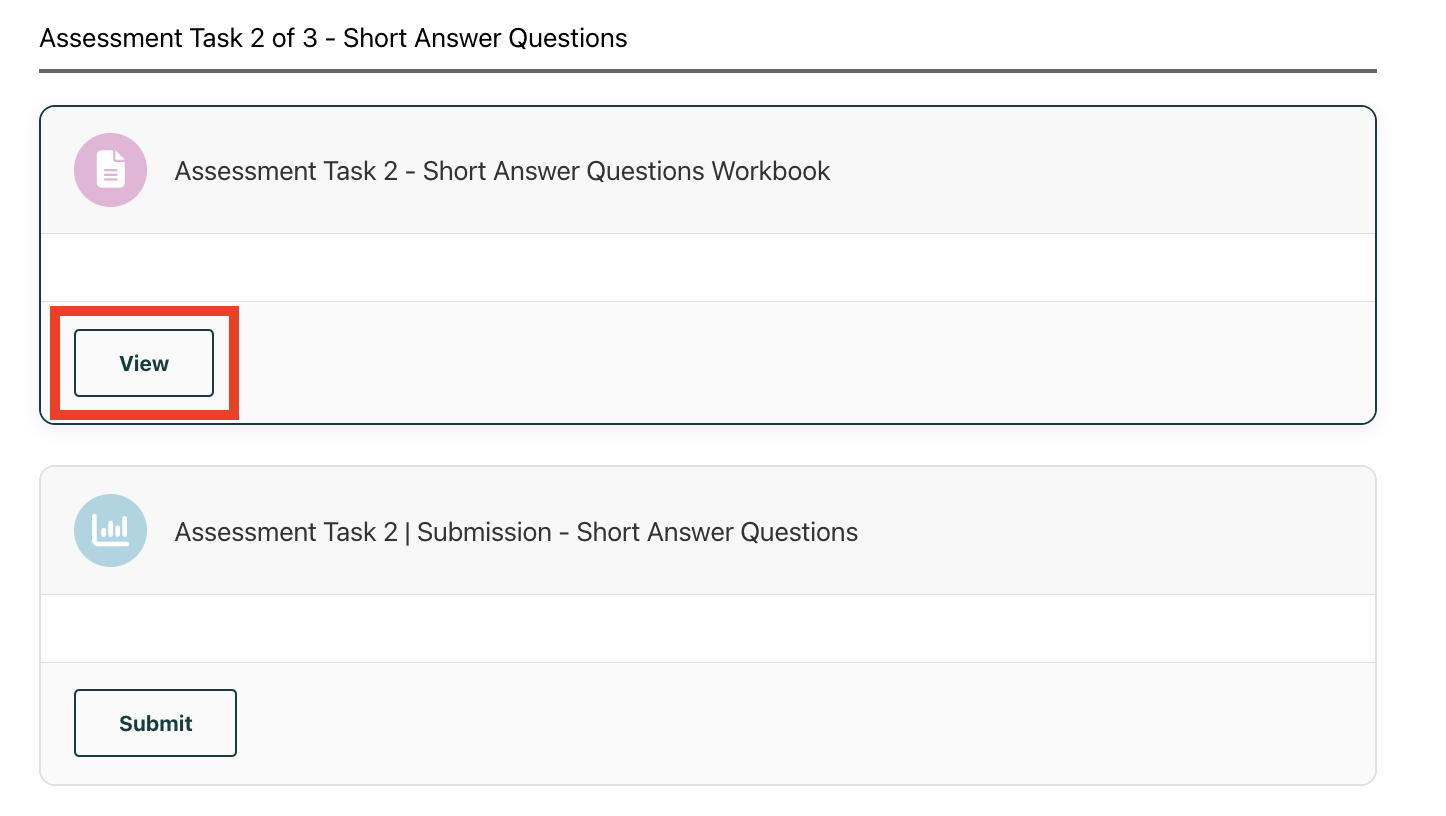
Click “View.”
-
The assignment file will automatically download.
-
Open the file and carefully read the instructions.
-
Complete the assessment as instructed.
Step 2: Upload Your Completed Assessment
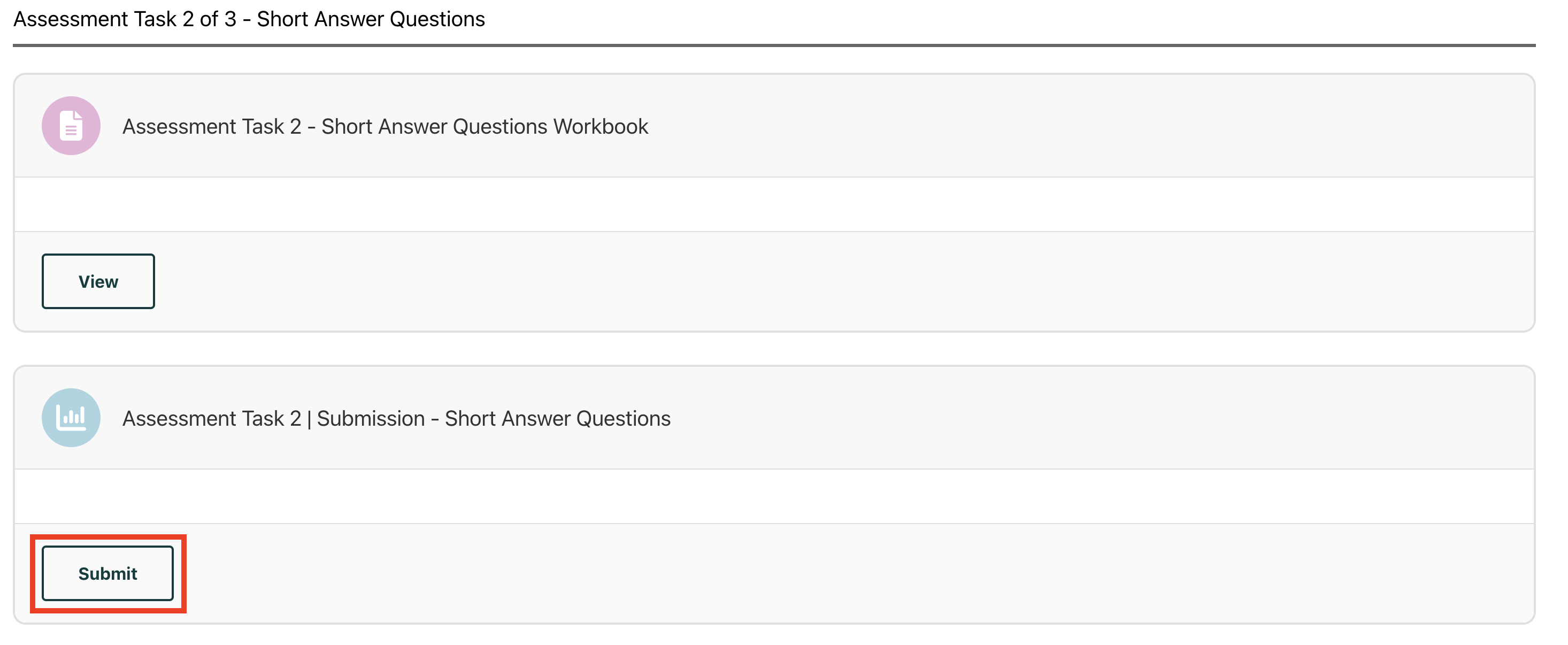
⚠ Important: Your file must be in PDF format before uploading.
-
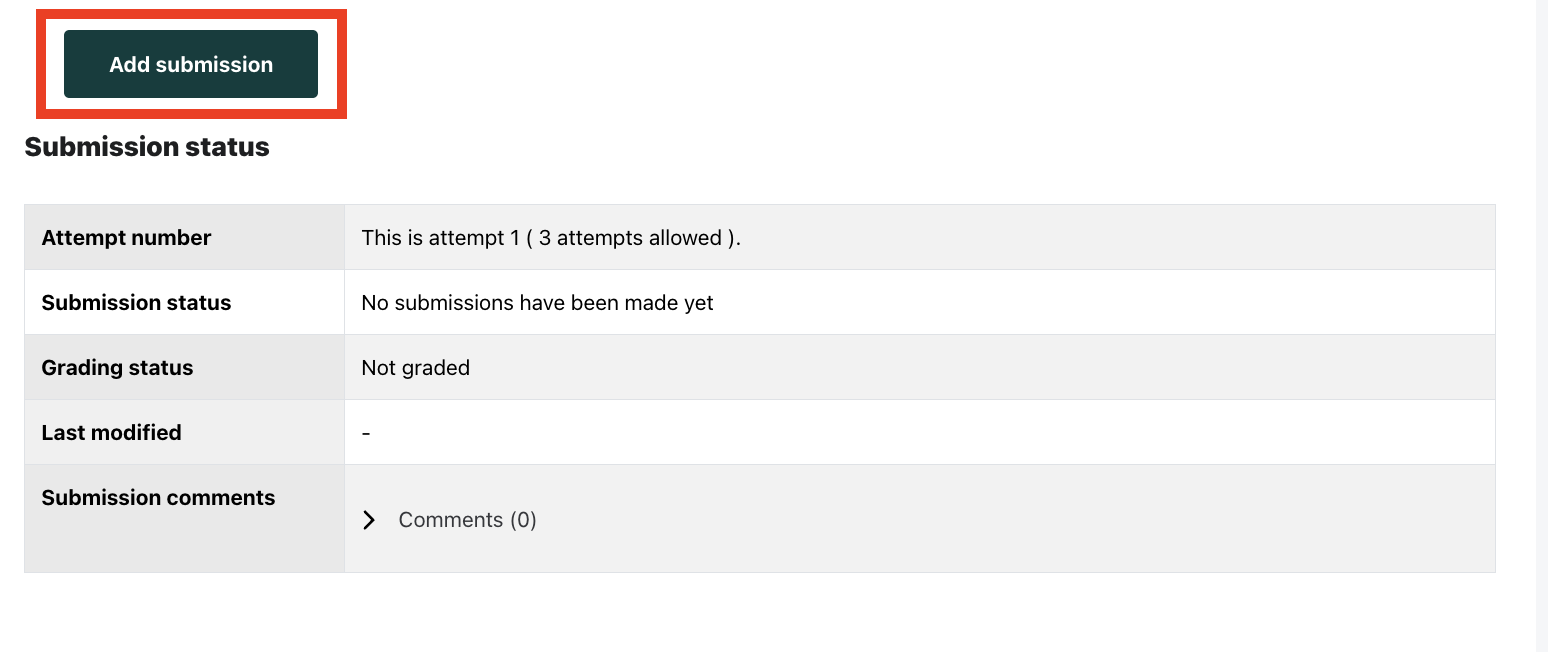
Click “Submit.”
-
Select “Add Submission.”
Step 3: Upload the File
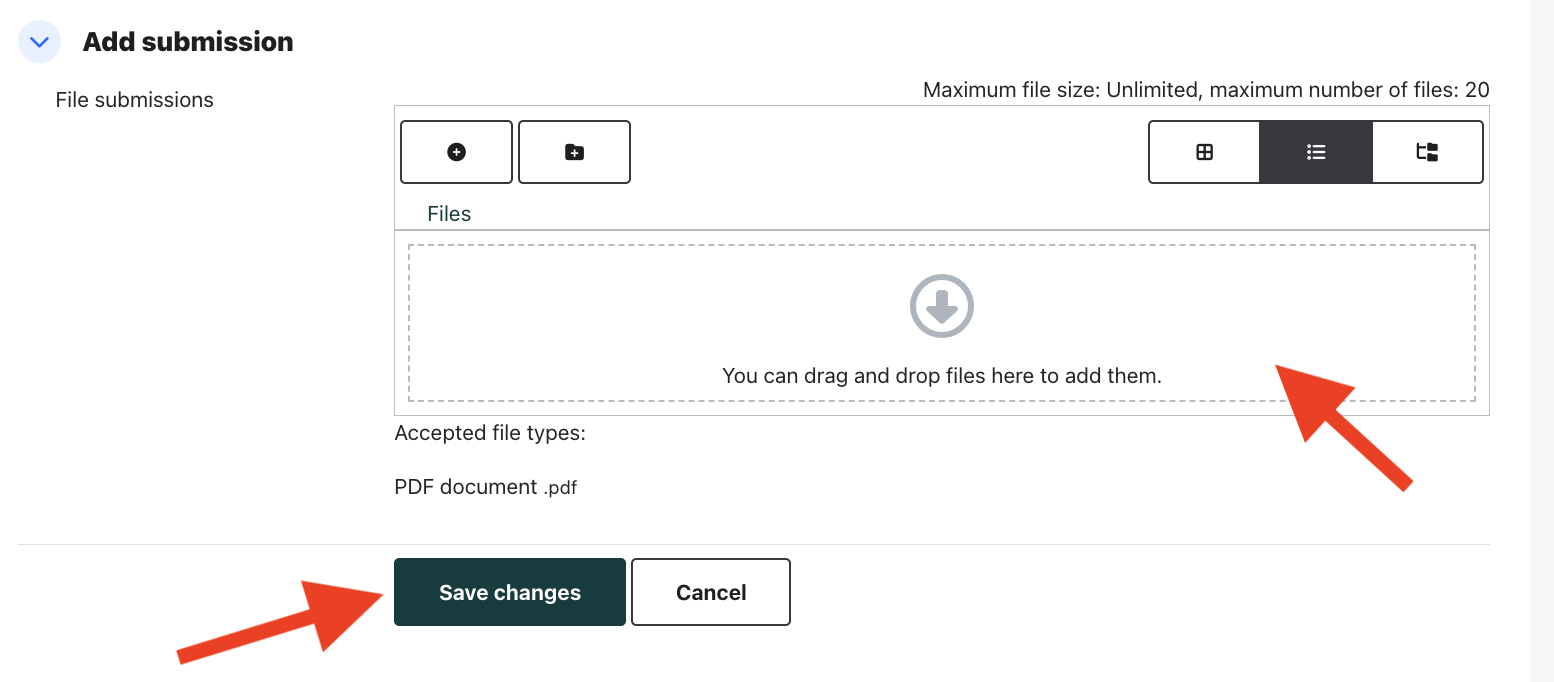
You can upload your file by:
-
Dragging and dropping the file into the upload area, OR
-
Clicking to manually select the file.
After uploading:
-
Click “Save Changes.”
Step 4: Finalize Submission
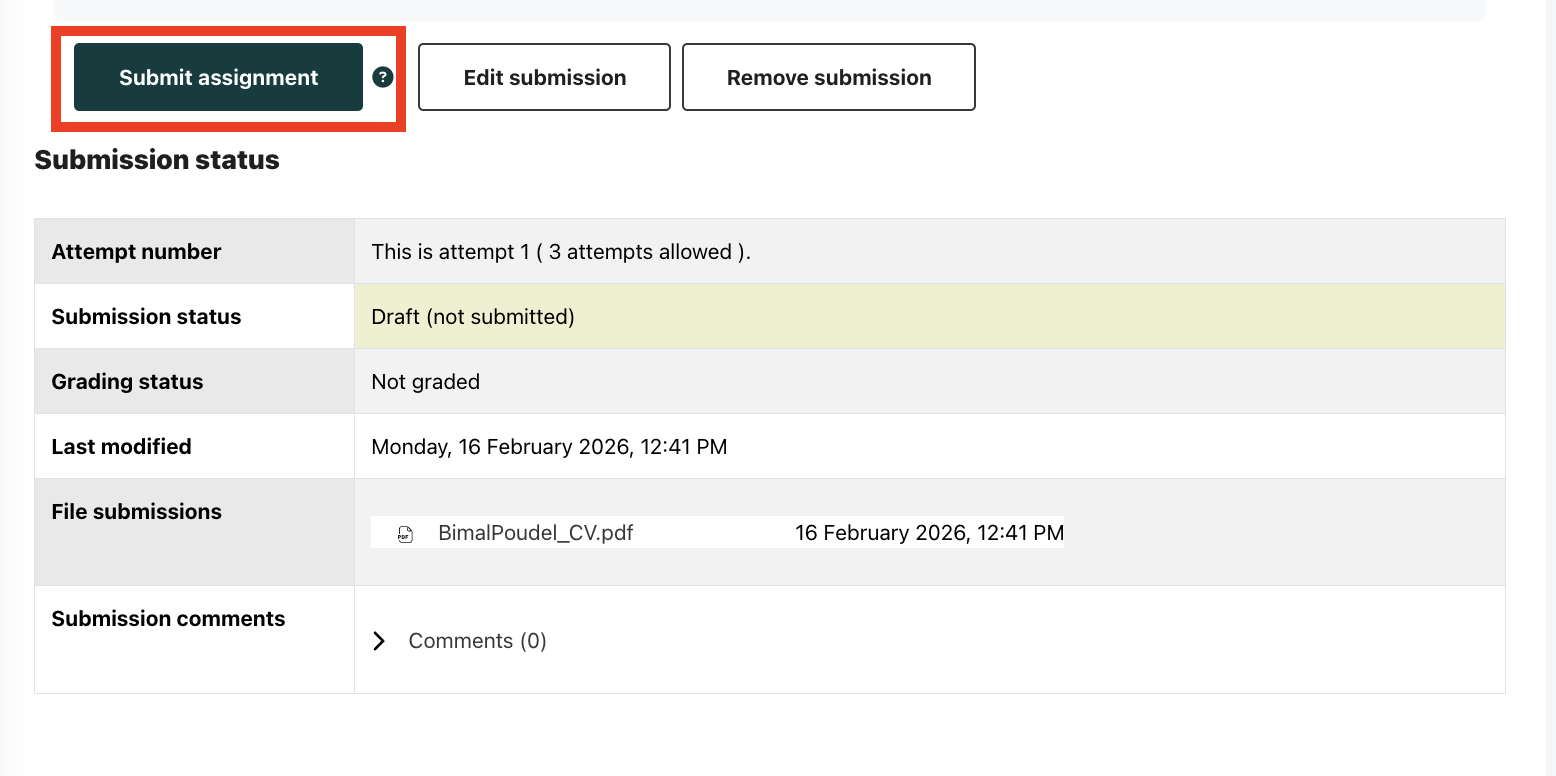
After saving, you will see the following options:
-
Submit Assignment – if this is your final version
-
Edit Submission – to make changes
-
Remove Submission – to delete and upload a new file
When ready:
-
Click “Submit Assignment.”
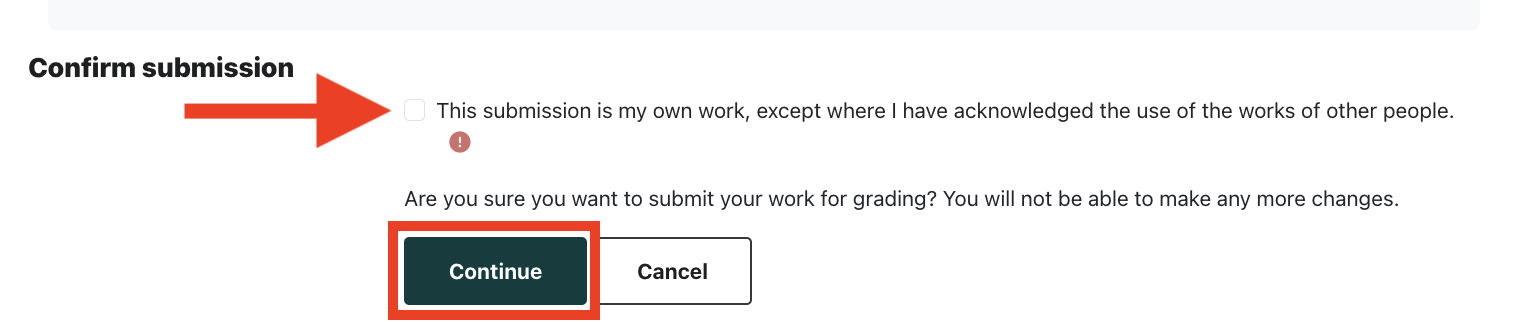
-
Tick the confirmation checkbox.
-
Click “Continue.”
Step 5: Check Submission Status
After confirming, a Submission Status page will appear. It will show:
-
Attempt Number
-
Submission Status
-
Grading Status
-
Last Modified
-
File Submissions
-
Submission Comments
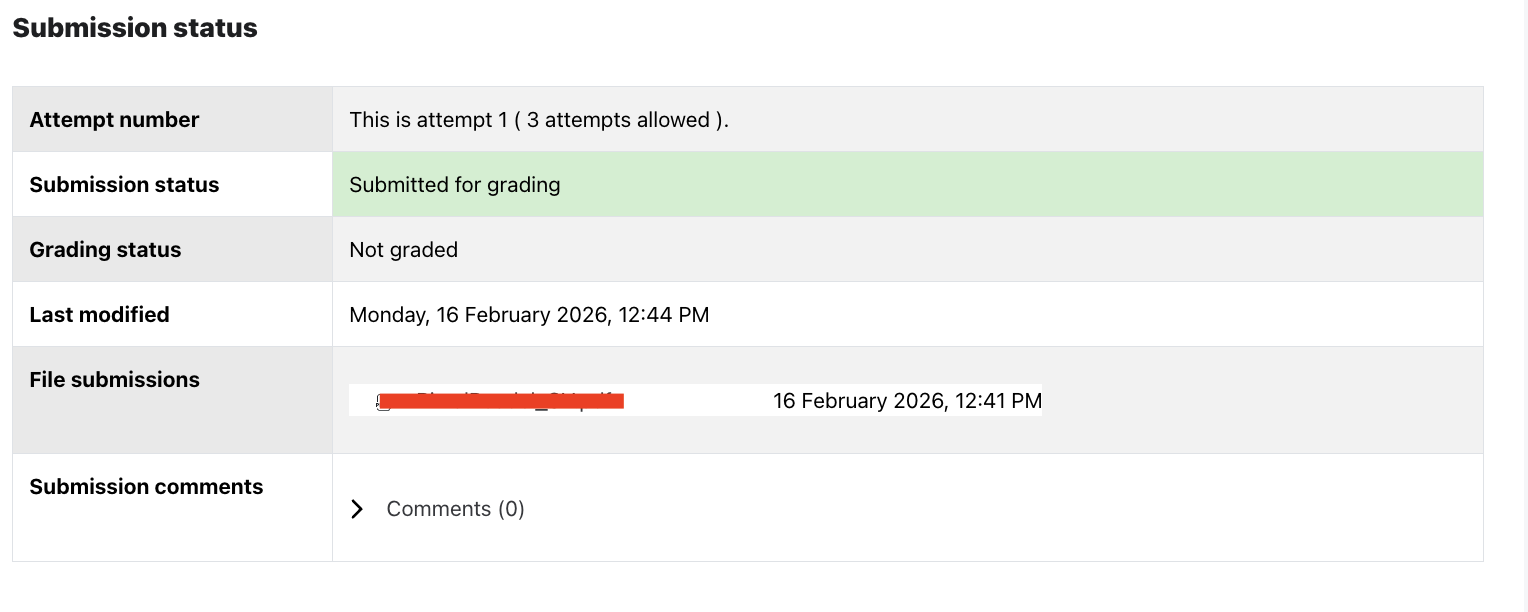
✅ Make sure the Submission Status shows “Submitted.”
Important Reminders
-
Complete the Student Declaration first.
-
Ensure your file is in PDF format.
-
Double-check your work before clicking Submit Assignment.
-
Keep a copy of your submitted file for your records.